As an Amazon Associate and an AliExpress affiliate, TechGurl earns from qualifying purchases. Some links on this page are affiliate links — if you buy through them we may receive a commission, at no extra cost to you. This never affects which products we cover or what we say about them.
Disclosure: This article contains affiliate links. If you buy through them we may earn a small commission at no extra cost to you.
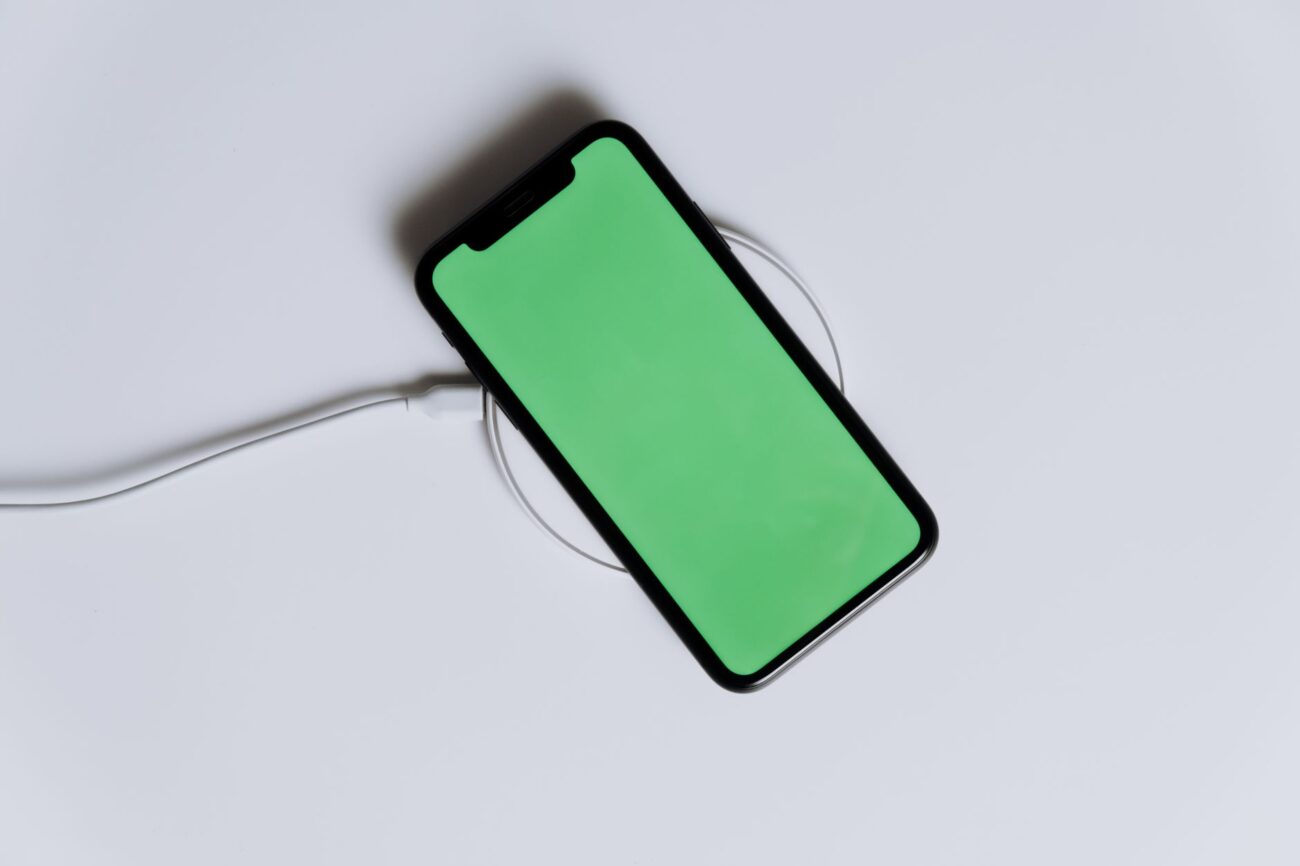
When you set your smartphone down at night and wake up to a dead battery, learning how to fix a wireless charger quickly becomes a top priority. Wireless power transfer feels like magic when it works, but subtle hardware or alignment issues can easily interrupt the charging process.
How Wireless Charging Actually Works
Before jumping into hardware troubleshooting, it helps to understand the underlying technology. Modern smartphones and charging pads rely on inductive power transfer, primarily governed by the Qi standard established by the Wireless Power Consortium. Inside your charging pad is a transmitter coil made of tightly wound copper wire. When electric current flows through this coil, it creates an alternating electromagnetic field.
Your smartphone contains a matching receiver coil behind its back glass. When these two coils are placed within millimeters of each other, the magnetic field induces an electric current in the phone coil, which is then regulated and routed into your lithium-ion battery. Because this process relies heavily on precise proximity and adequate electrical current, even tiny disruptions—such as a thick case, a underpowered plug, or slight misalignment—can interrupt the power stream.
Step 1: Verify the Power Supply and Adapter Wattage
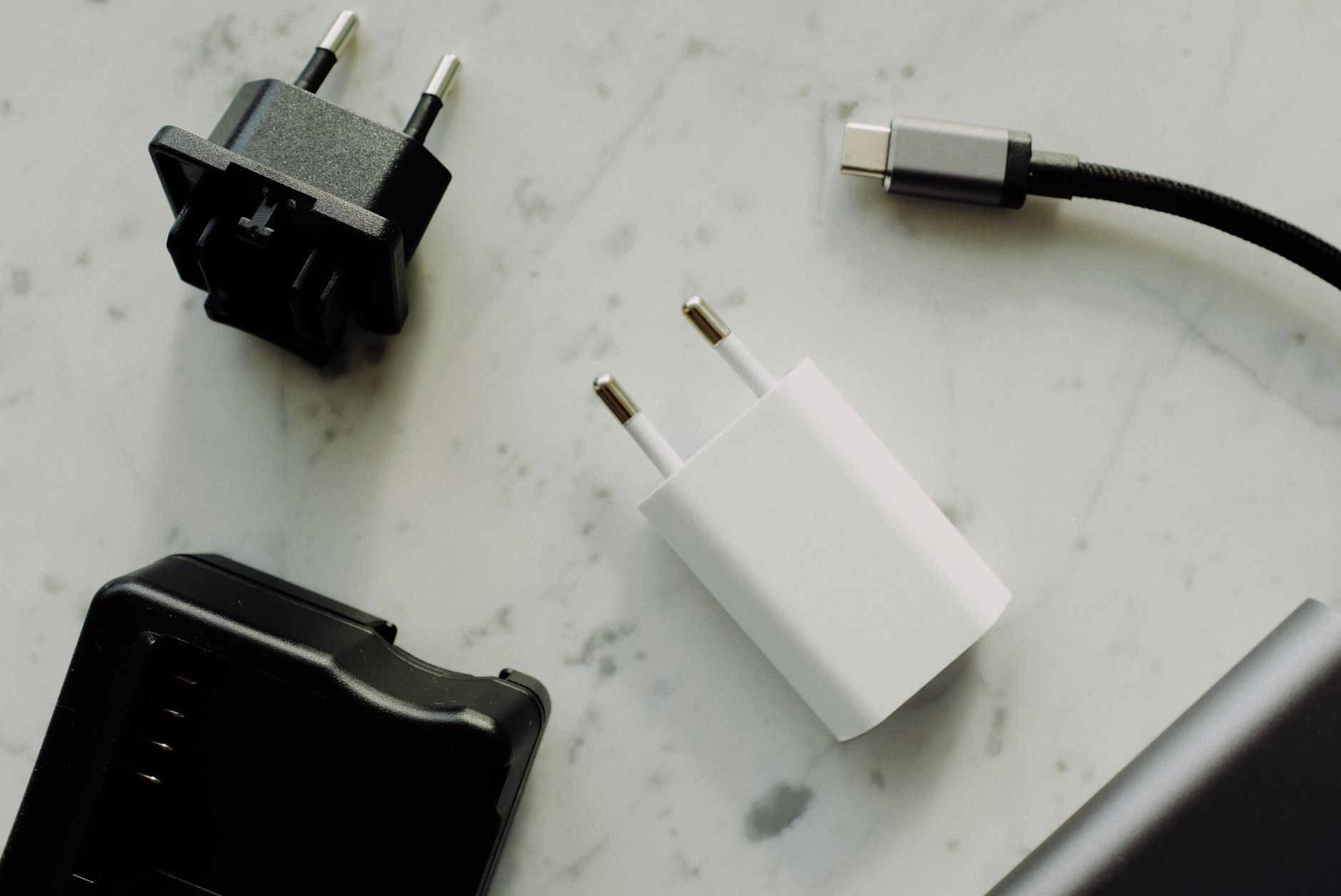
The single most common reason a wireless pad stops functioning is an inadequate wall adapter. Many wireless chargers ship with only a USB cable in the box, leading users to plug them into old 5W iPhone charging bricks or standard computer USB ports. Wireless charging pads require significantly higher input wattage than standard wired cables because induction incurs energy losses as heat.
A basic 10W or 15W Qi pad usually requires a Quick Charge (QC) 2.0/3.0 or USB Power Delivery (USB-PD) wall plug outputting at least 18W to 20W. If your wall adapter does not meet these requirements, the pad may light up briefly and then shut down due to under-voltage safeguards.
Anker 511 Charger Nano 3 — check today’s price
Always inspect the small text printed on your wall plug. If it states an output of ‘5V = 1A’ (5 Watts), it lacks the output power necessary to drive most modern inductive pads. Swap it for a modern USB-PD adapter to ensure reliable energy flow.
Step 2: Inspect Cables and Port Connections
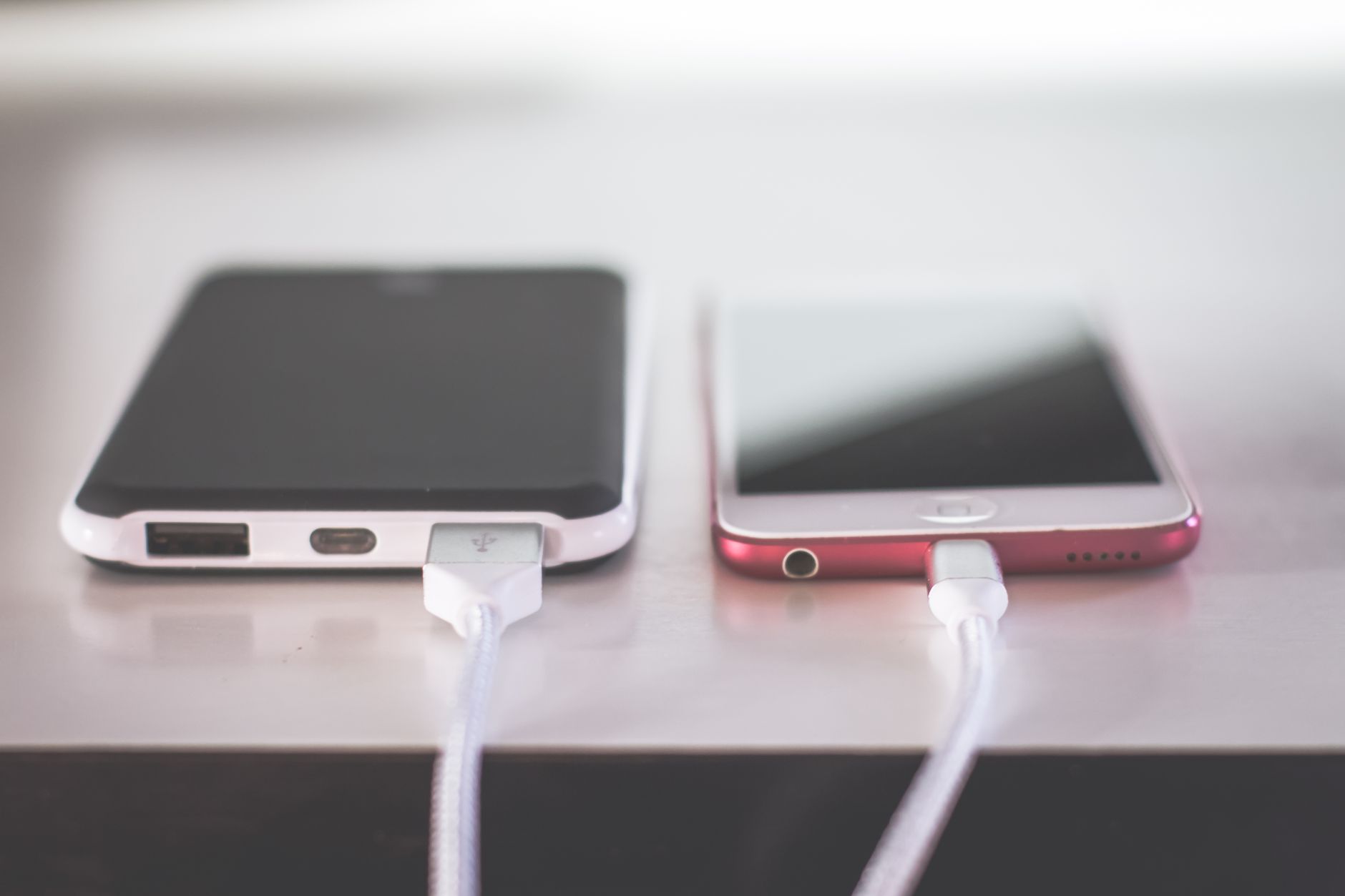
Cables degrade over time due to flexing and strain near the connector heads. If you are trying to fix a wireless charger that intermittently stops charging, test the USB cable supplying power to the pad.
- Unplug and Re-seat: Disconnect both ends of the cable, check for dust or lint inside the micro-USB or USB-C ports, and plug them back in firmly.
- Swap Cables: Replace the input cable with a known high-quality data-and-power cable. Some cheap charging cables lack the data pins required for fast-charging handshakes between the adapter and the pad.
- Avoid USB Hubs: Plug the adapter directly into a wall outlet rather than unpowered USB ports on monitors, keyboards, or desk power strips.
Step 3: Check Phone Cases and Attachments
Inductive power transfer weakens dramatically as distance increases. Most Qi chargers have a maximum effective transmission distance of 3mm to 5mm. Thick protective cases, rugged armor shells, or dual-layer designs can push the receiver coil too far from the transmitter coil.
Furthermore, metal blocks electromagnetic induction completely. Remove any of the following items from the back of your phone:
- Metal plates used for magnetic car mounts.
- PopSockets, ring holders, or kickstands containing metallic pins.
- Credit cards, transit passes, or RFID badges stored in wallet cases.
- Excessively thick rubberized armor cases.
Wireless pads feature built-in Foreign Object Detection (FOD). If the pad detects metal between itself and the phone, it will disable power delivery immediately and flash a warning LED (often red or blinking blue) to prevent dangerous thermal buildup.
Step 4: Re-align the Induction Coils
Because the magnetic field is localized, transmitter and receiver coils must line up accurately. If your phone sits just an inch off-center, charging efficiency drops to zero.
If you use a flat charging mat, position the center of your phone directly over the center of the pad. If you use a stand-style charger, check whether your phone rests properly on the bottom ledge. Dual-coil or triple-coil stands offer wider coverage, but single-coil pads demand exact placement. For iPhone users with MagSafe, built-in magnets auto-align the coils, but third-party magnetic cases with weak magnets can pull the phone off-center.
Step 5: Address Thermal Throttling and Overheating
Heat is the primary enemy of wireless power delivery and battery lifespan. Both Android and iOS operating systems actively monitor thermal levels during charge cycles. If the internal battery temperature exceeds safety limits (typically around 35°C to 40°C or 95°F to 104°F), the operating system will pause charging at 80% or cut power off completely until the device cools down.
To prevent heat buildup:
- Avoid leaving the charging pad in direct sunlight or near warm electronics.
- Do not run heavy background tasks, game, or stream high-definition video while charging wirelessly.
- Remove thick silicone cases during charging if your phone feels hot to the touch.
- Choose charging stands with active cooling fans if you live in warm environments.
How to Fix a Wireless Charger That Works Intermittently
When trying to fix a wireless charger that randomly starts and stops, software glitches on your smartphone are often responsible rather than hardware failure. Modern smartphones communicate continuously with the charging pad to negotiate voltage levels.
Follow these quick software maintenance steps to restore communication:
- Perform a Soft Reset: Restart your smartphone to clear background processes managing power routing.
- Toggle Wireless Fast Charging: On Android devices (such as Samsung Galaxy phones), navigate to Settings > Battery > Charging settings and toggle off ‘Fast wireless charging’, then turn it back on.
- Update Firmware/OS: Ensure your phone runs the latest system update, as manufacturers frequently patch power management bugs.
- Disable Optimized Battery Charging: Features like Apple’s ‘Optimized Battery Charging’ or Android’s ‘Adaptive Battery’ can intentionally delay charging past 80% based on your daily routine. Temporarily turn these features off to test if the charger itself is functioning.
Handy tools on AliExpress
If you suspect physical power issues or faulty cables, using inexpensive diagnostic accessories makes troubleshooting much faster.
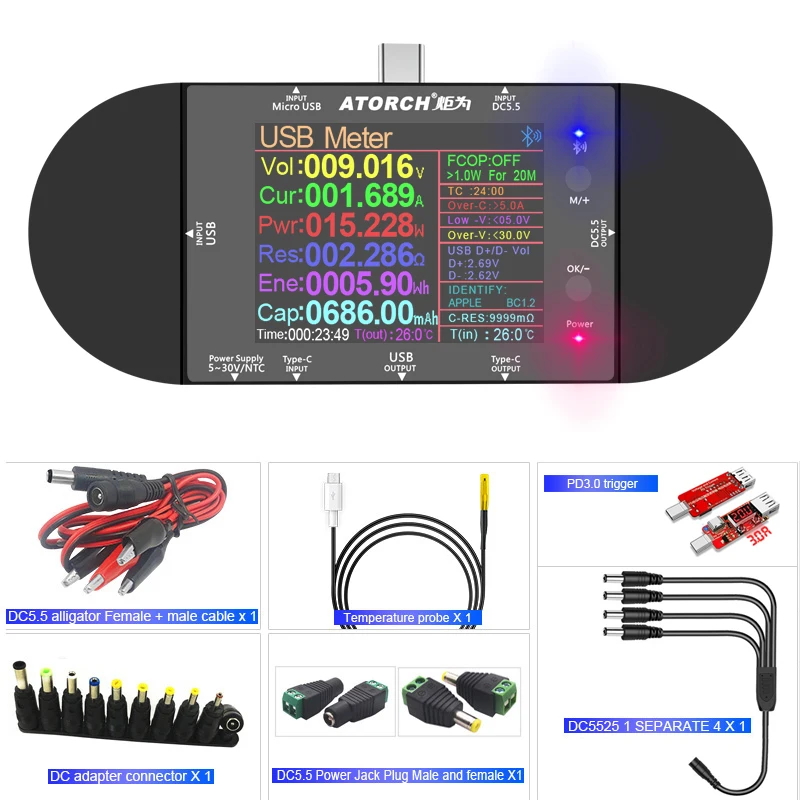
UD24 2.4"inch USB tester DC5.5 Type-C digital voltmeter ammeter power bank voltage detecto
$21.24 $44.25 on AliExpress
UD24 2.4"inch USB tester DC5.5 Type-C digital voltmeter ammeter power bank voltage detecto
$21.63 $42.42 on AliExpress
Common Wireless Charging Mistakes to Avoid
- Using PC USB Ports: Standard computer USB 2.0 ports output only 2.5W, which is insufficient for wireless charging pads.
- Ignoring Blinking LED Status Lights: Always consult your pad’s manual; a flashing light usually indicates a specific code such as foreign object detection or under-voltage input.
- Leaving Magnetic Cards in Wallet Cases: Inductive charging can demagnetize credit card strips and ruin chip cards.
- Expecting Wired Speeds: Even ‘fast’ wireless chargers (15W) lose roughly 20-30% of energy as ambient heat compared to high-efficiency USB-PD wired charging.
Frequently Asked Questions
Why is my wireless charger light blinking red or blue?
A blinking status light usually signals an error. Common causes include a foreign metal object detected between the phone and pad, an underpowered wall adapter, or severe coil misalignment.
Can a software update fix a wireless charger?
Yes. Operating system updates frequently address battery driver bugs, thermal management algorithms, and Qi communication protocols that can cause charging drops.
Does wireless charging degrade battery health faster?
Wireless charging produces slightly more heat than wired charging, which can accelerate long-term battery degradation if the phone overheats regularly. Keeping the device cool mitigates this issue entirely.
Why does my phone get warm on the charging pad?
Inductive energy transfer is not 100% efficient. The unused electromagnetic energy dissipates as heat, which is normal as long as the phone does not become uncomfortable to hold.
Conclusion
Before buying a replacement, learning to fix a wireless charger usually comes down to checking power brick wattage, stripping off thick metallic cases, and aligning the internal coils properly. By eliminating thermal bottlenecks and testing your setup step-by-step, you can restore fast, convenient power transfer. If you want to dive deeper into practical tech maintenance, check out our comprehensive The Best E-Readers for 2026: Your Ultimate Digital Library to keep all your daily gear running reliably.