As an Amazon Associate and an AliExpress affiliate, TechGurl earns from qualifying purchases. Some links on this page are affiliate links — if you buy through them we may receive a commission, at no extra cost to you. This never affects which products we cover or what we say about them.
{“title”:”Fix 4K Monitor Blurry Text: Complete Troubleshooting Guide”,”seo_title”:”Fix 4K Monitor Blurry Text: Complete Troubleshooting Guide 2026: Get Crystal Clear Display”,”meta_description”:”Learn why your 4K monitor blurry text appears and how to fix scaling, cables, and settings for sharp 4K resolution.”,”focus_keyword”:”4K monitor blurry text”,”category”:”How-To Guides”,”tags”:”4K monitor troubleshooting, blurry text fix, display scaling, HDMI 2.1 cable, ClearType calibration”,”featured_query”:”4K monitor setup desk”,”img1_query”:”monitor display settings”,”img1_alt”:”Windows display settings showing 4K monitor blurry text scaling options”,”img2_query”:”HDMI cable connection”,”img2_alt”:”High-speed HDMI cable connected to 4K monitor for blurry text fix”,”img3_query”:””,”img3_alt”:””,”ae1_query”:”HDMI 2.1 certified cable”,”ae2_query”:”DisplayPort 1.4 cable”,”ae3_query”:””,”ae4_query”:””,”ae5_query”:””,”ae_minprice”:”15″,”content_html”:”
Disclosure: This article contains affiliate links. If you buy through them we may earn a small commission at no extra cost to you.
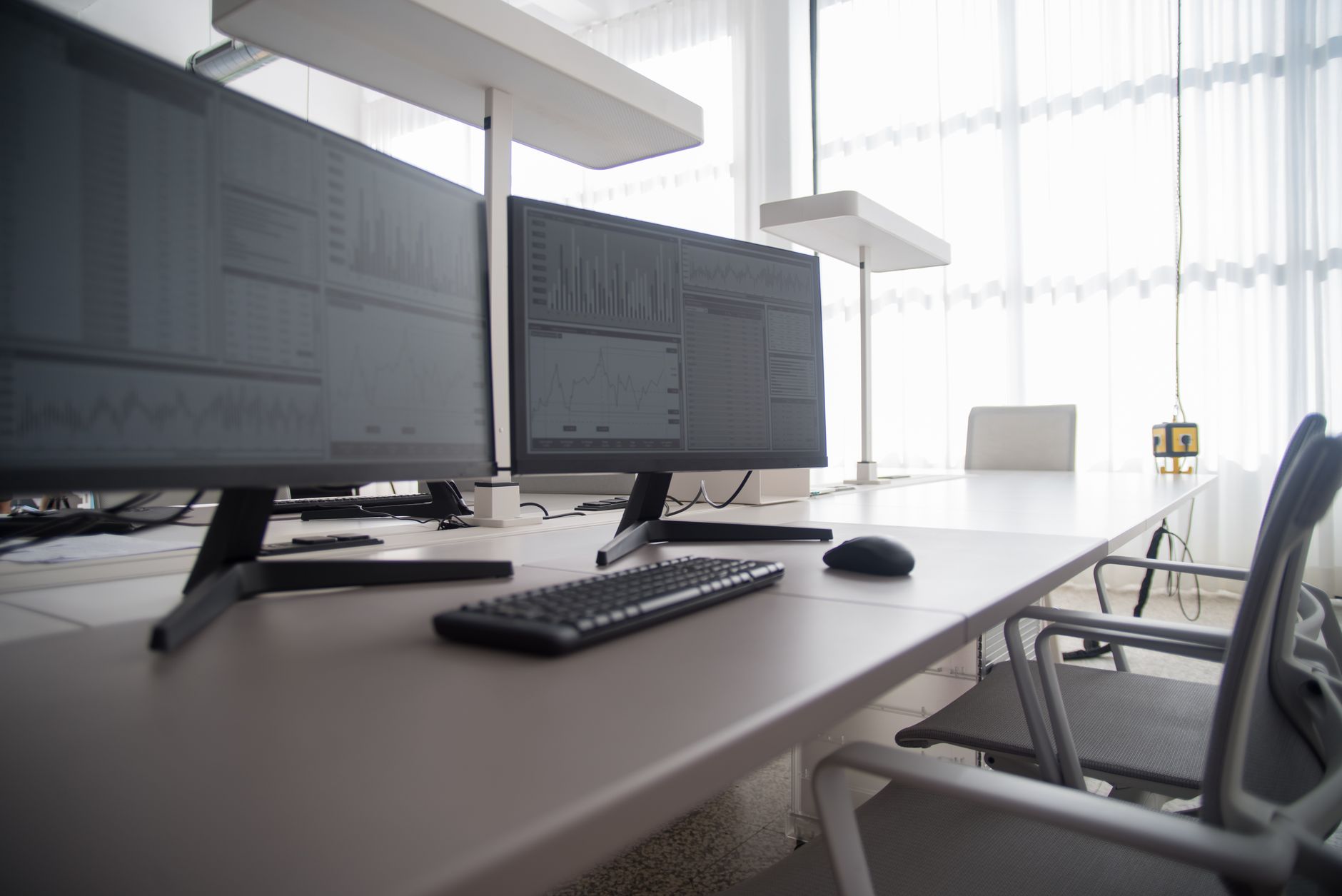
If you just unboxed a shiny new panel and immediately noticed 4K monitor blurry text across Windows, macOS, or Linux, you are not alone. The root cause is almost always a mismatch between the display\u2019s native pixel grid and the signal or scaling settings your OS sends to it. Below is a systematic, step-by-step troubleshooting guide that covers cables, ports, driver quirks, and the scaling traps that turn razor-sharp 3840\u00d72160 into a fuzzy mess.
Step 1: Verify the Panel Is Actually Running at 3840\u00d72160 @ 60 Hz (or Higher)
Open your monitor\u2019s on-screen display (OSD) and locate the \u201cInformation\u201d or \u201cSignal\u201d page. It should read 3840 x 2160 at 60 Hz (or 120/144 Hz on high-refresh models). If it shows 1920\u00d71080, 2560\u00d71440, or an interlaced variant like 3840\u00d72160i, the GPU is down-scaling before the signal even leaves the card. Fix the output resolution first; scaling tweaks later cannot recover detail that was never transmitted.
Windows
- Right-click the desktop \u2192 Display settings.
- Select the 4K monitor in the diagram.
- Scroll to Display resolution and choose 3840 x 2160 (Recommended).
- Confirm the refresh rate dropdown shows 60 Hz (or the panel\u2019s max).
macOS
- Open System Settings \u2192 Displays.
- Hold Option and click Scaled to reveal the raw resolution list.
- Pick 3840 x 2160 (marked \u201cDefault for display\u201d on Apple silicon).
Linux (GNOME/KDE)
Use Settings \u2192 Displays or xrandr --output <connector> --mode 3840x2160 --rate 60. Verify with xrandr -q that the mode shows a * (preferred) and + (current).
Step 2: Use a Cable and Port That Support Full 4K Bandwidth
A surprising number of \u201c4K\u201d cables are only rated for 18 Gbps (HDMI 2.0), which forces 4:2:0 chroma subsaturation at 60 Hz and makes text fringes visible. For crisp text you want full 4:4:4 chroma at 8-bit or 10-bit color.
- HDMI 2.1 Certified (48 Gbps) \u2013 guarantees 4K 120 Hz 4:4:4 and VRR.
- DisplayPort 1.4 / 1.4a (HBR3, 32.4 Gbps) \u2013 native 4K 120 Hz 4:4:4, widely supported on GPUs since 2016.
- USB-C / Thunderbolt 3/4 with DP Alt Mode \u2013 carries DP 1.4 tunnels; check your dock\u2019s spec sheet.
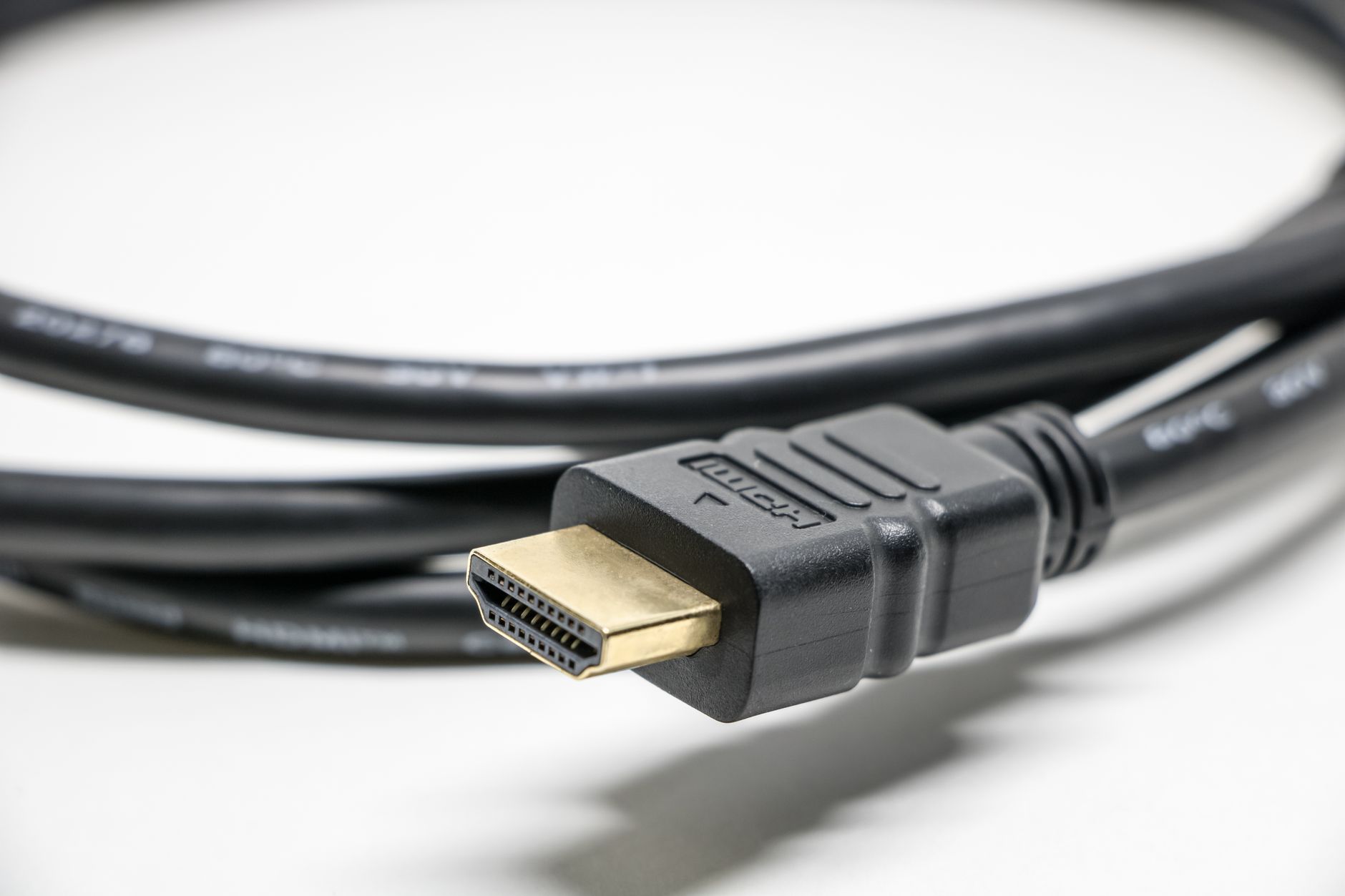
Avoid passive HDMI cables longer than 3 m (10 ft) unless they are active optical or carry the Ultra High Speed hologram label. If you are using a dock or KVM, bypass it temporarily\u2014many cheap hubs only negotiate HDMI 1.4 (4K 30 Hz).
Cable Matters Ultra High Speed HDMI 2.1 Cable 48Gbps 6ft — check today’s price
Step 3: Disable Fractional Scaling and Use Integer Multiples
Modern OSes default to 150 % or 125 % scaling on 27\u201332\u201d 4K panels. Fractional scaling forces the compositor to render at a non-integer resolution then down-sample, which softens glyph edges. The sharpest text comes from either:
- 100 % scaling \u2013 native 1:1 pixel mapping (tiny UI on 27\u201d).
- 200 % scaling \u2013 each logical pixel becomes a perfect 2\u00d72 block (equivalent to 1080p UI size but retina-sharp).
Windows 10/11
- Settings \u2192 System \u2192 Display \u2192 Scale.
- Pick 100 % or 200 % (avoid 125 %, 150 %, 175 %).
- Log out and back in so Win32 apps re-draw at the new DPI.
macOS
Apple only offers integer \u201cRetina\u201d modes (effectively 200 %) plus a few fractional \u201cMore Space\u201d steps. Stick to Default for display (200 %) or More Space (renders at 5120\u00d72880 then down-samples\u2014still sharp on Apple Silicon).
Linux (Wayland)
GNOME 43+ and KDE Plasma 5.27+ support per-monitor integer scaling. In Settings \u2192 Displays, set Scale to 100 % or 200 %. On X11, use xrandr --output <connector> --scale 1x1 or 2x2 only.
Step 4: Turn Off Display-Side Sharpening and \u201cSuper Resolution\u201d
Many monitors ship with \u201cSharpness\u201d at 50/100 or an \u201cAI Super Resolution\u201d toggle enabled. These post-process the already-rendered frame, adding halos around glyphs. In the OSD:
- Set Sharpness to 0 (or the midpoint if 0 adds blur).
- Disable Super Resolution, Dynamic Contrast, Black Equalizer, and any \u201cGaming\u201d picture modes.
- Choose sRGB or Standard color preset for neutral tracking.
Step 5: Run ClearType Tuner (Windows) or Font Smoothing Tweaks (macOS/Linux)
Windows ClearType
- Press Win, type ClearType, open Adjust ClearType text.
- Check Turn on ClearType \u2192 Next through all monitors.
- Pick the sample that looks crispest on each monitor individually.
- Finish \u2192 log out/in.
macOS
Apple removed the global font-smoothing slider in macOS 11+. On non-Retina external 4K displays you can try:
defaults -currentHost write -g AppleFontSmoothing -int 1  # 0=off, 1=light, 2=medium, 3=strong
killall Finder
Reboot. Value 1 often reduces the \u201cfat\u201d look on 27\u201d 4K @ 200 % scaling.
Linux (FreeType)
Edit /etc/fonts/local.conf or use gnome-tweaks \u2192 Fonts \u2192 Hinting: Full, Antialiasing: Rgba. Re-login.
Step 6: Check GPU Driver Quirks and Chroma Subsampling
NVIDIA and AMD control panels sometimes force YCbCr 4:2:2 or 4:2:0 to save bandwidth, which murders text clarity. Force RGB 4:4:4:
- NVIDIA Control Panel \u2192 Change resolution \u2192 Output color format: RGB, Output dynamic range: Full.
- AMD Software \u2192 Display \u2192 Pixel Format: RGB 4:4:4 Pixel Format PC Standard (Full RGB).
- Intel Graphics Command Center \u2192 Display \u2192 Color Format: RGB, Quantization Range: Full.
If the dropdown is greyed out, your cable or port negotiation (Step 2) is the bottleneck.
Step 7: Verify Application-Level DPI Awareness
Even with perfect OS scaling, individual apps can render blurry if they are DPI-unaware and get bitmap-stretched by the OS. In Windows:
- Right-click the app\u2019s shortcut \u2192 Properties \u2192 Compatibility \u2192 Change high DPI settings.
- Check Override high DPI scaling behavior \u2192 System (Enhanced).
- For Electron/Chrome apps, add
--force-device-scale-factor=2(for 200 %) to the shortcut target.
Modern browsers (Chrome 110+, Edge, Firefox 100+) auto-detect correctly; older apps like Java Swing or Qt 5 may need the override.
Step 8: Eliminate Adapter and Dock Variables
If you are running through a USB-C hub, DisplayPort-to-HDMI adapter, or KVM switch, unplug it and connect the monitor directly to the GPU/port. Re-test. Many adapters claim \u201c4K 60 Hz\u201d but only deliver 4:2:0 or 30 Hz. If direct connection fixes the blur, replace the adapter with a DP 1.4 to HDMI 2.1 active adapter or a Thunderbolt 4 dock certified for 4K 60 Hz 4:4:4.
Club3D CAC-1085 DisplayPort 1.4 to HDMI 2.1 Active Adapter — check today’s price
Common Mistakes That Keep 4K Monitor Blurry Text Alive
- Leaving Windows at 150 % scaling because \u201ceverything is too small\u201d\u2014use 200 % or adjust individual app zoom instead.
- Using the HDMI cable that came with a 1080p monitor five years ago.
- Trusting the OS \u201cRecommended\u201d resolution when the OSD shows 1080p.
- Enabling monitor \u201cSharpness\u201d above 0 thinking it helps text.
- Forgetting to log out/in after changing DPI scaling.
FAQ
Why does my 4K monitor look blurry only in certain apps?
Those apps are likely DPI-unaware and being bitmap-stretched by the OS. Apply the per-app DPI override in Step 7 or update the app to a DPI-aware version.
Can a cheap HDMI cable cause blurry text at 4K 60 Hz?
Yes. Cables rated only for 18 Gbps (HDMI 2.0) force 4:2:0 chroma subsampling at 4K 60 Hz, which visibly degrades red/blue text edges. Use an Ultra High Speed HDMI 2.1 certified cable for guaranteed 4:4:4 transport.
Is 200 % scaling the same as lowering resolution to 1080p?
No. 200 % scaling renders UI at 1920\u00d71080 logical pixels but each logical pixel maps to a perfect 2\u00d72 physical pixel block. Text and vector graphics remain at 3840\u00d72160 sharpness; only non-DPI-aware bitmaps lose detail.
My MacBook only shows 3008\u00d71692 scaled\u2014how do I get true 3840\u00d72160?
Hold Option while clicking \u201cScaled\u201d in System Settings \u2192 Displays. Select the 3840 x 2160 entry (often labeled \u201cLow resolution\u201d). UI will be tiny; most users prefer the default Retina 200 % mode.
Conclusion
Fixing 4K monitor blurry text is almost always a matter of aligning three things: a native 3840\u00d72160 signal, a cable/port combo that carries full 4:4:4 chroma, and integer OS scaling (100 % or 200 %). Walk through the steps in order\u2014verify resolution, upgrade the cable, set integer scaling, disable monitor sharpening, tune ClearType, force RGB 4:4:4 in the GPU panel, and strip out dodgy adapters. Once those boxes are ticked, text should look as crisp as a printed page. For deeper dives on color management or HDR calibration, check our How to Fix a BT Smart Hub Dropping Out Constantly guide on display profiling.
Handy tools on AliExpress
Need a certified high-bandwidth cable or active adapter without the retail markup? These AliExpress searches surface well-reviewed options that meet the specs discussed above.

Vention HDMI 2.1 Switcher 8K@60Hz 4K@120Hz for Laptop PC PS5 Monitors Xbox TV Bi-Direction
$15.02 $30.65 on AliExpress

KVM Switch 3 Monitors 2/3/4 Computers,USB 3.0 HDMI+DisplayPort 8K@60Hz/4k@144Hz Triple Mon
$91.83 $180.06 on AliExpress
“}