As an Amazon Associate and an AliExpress affiliate, TechGurl earns from qualifying purchases. Some links on this page are affiliate links — if you buy through them we may receive a commission, at no extra cost to you. This never affects which products we cover or what we say about them.
Disclosure: This article contains affiliate links. If you buy through them we may earn a small commission at no extra cost to you.
Few household technical snags are more frustrating during work calls or streaming sessions than dealing with a bt smart hub dropping out intermittently throughout the day. Whether you use the BT Smart Hub 2 or an original Smart Hub, connection drops usually boil down to one of two distinct categories: local wireless interference within your home, or an intermittent line fault upstream on the Openreach copper/fibre infrastructure. Identifying the root cause systematically saves hours of unnecessary troubleshooting.
Step 1: Decode the BT Smart Hub Status Lights
When an outage occurs, the first diagnostic step is observing the color and behavior of the central light on the front panel of your hub. The indicator communicates exactly where the disruption is taking place:
- Solid Blue: The hub is powered on and connected to the internet. If your connection cuts out while the light remains steady blue, the broadband line is fine, meaning your problem is local Wi-Fi dropouts or device-specific disconnects.
- Flashing Orange: The hub is attempting to establish a connection with the broadband network.
- Flashing Purple: The broadband cable is unplugged, loose, or cannot detect a signal from the telephone master socket.
- Solid Orange / Flashing Red: There is an active line issue or the hub firmware has encountered an operational fault.
Why Is Your BT Smart Hub Dropping Out? (Wi-Fi vs Line Fault)
To fix a bt smart hub dropping out, you must isolate whether the router loses synchronization with the external network or whether devices are simply losing their wireless handshake with the hub. Access your router management console to verify connection uptime:
- Open a web browser on a connected phone or computer and navigate to
192.168.1.254to open the BT Smart Hub Manager. - Click on Status or Advanced Settings > Technical Log.
- Check the Broadband Uptime and DSL Sync Time.
If the Broadband Uptime resets every time you lose connection, your hub is physically dropping sync with the exchange. If the uptime shows days or weeks of uninterrupted connection despite your phone or laptop dropping offline, the issue is wireless congestion or local interference.
Step 2: Inspect the Master Socket and Test Socket
Physical wiring issues between your wall and the hub are a frequent cause of random disconnections. Older standard telephone master sockets require plug-in microfilters, whereas modern Openreach NTE5C sockets feature a built-in filtered faceplate.
If your master socket has a horizontal split across the front plate, unscrew the lower half to expose the internal test socket. Plug your broadband cable (using a microfilter if necessary) directly into this internal test socket. Running the hub from the test socket bypasses all extension wiring inside your house. If the connection becomes stable, the fault lies in domestic telephone extension wiring rather than the external Openreach line.
Step 3: Eliminate Local Wi-Fi Dropouts and Dead Zones
If your hub displays a steady blue light during dropouts, physical obstacles and radio interference are likely interrupting the wireless transmission. Microwaves, thick masonry walls, cordless phones, and densely populated neighboring Wi-Fi channels on the 2.4GHz spectrum can sever connections.
Position your hub elevated on an open table or shelf rather than inside a cabinet, on the floor, or directly behind a television. If your home covers multiple floors or has dense partition walls, extending coverage with dedicated hardware prevents packet loss and signal fading.
TP-Link RE700X WiFi 6 Range Extender — check today’s price
Step 4: Disable BT Smart Setup and Tweak Hub Settings
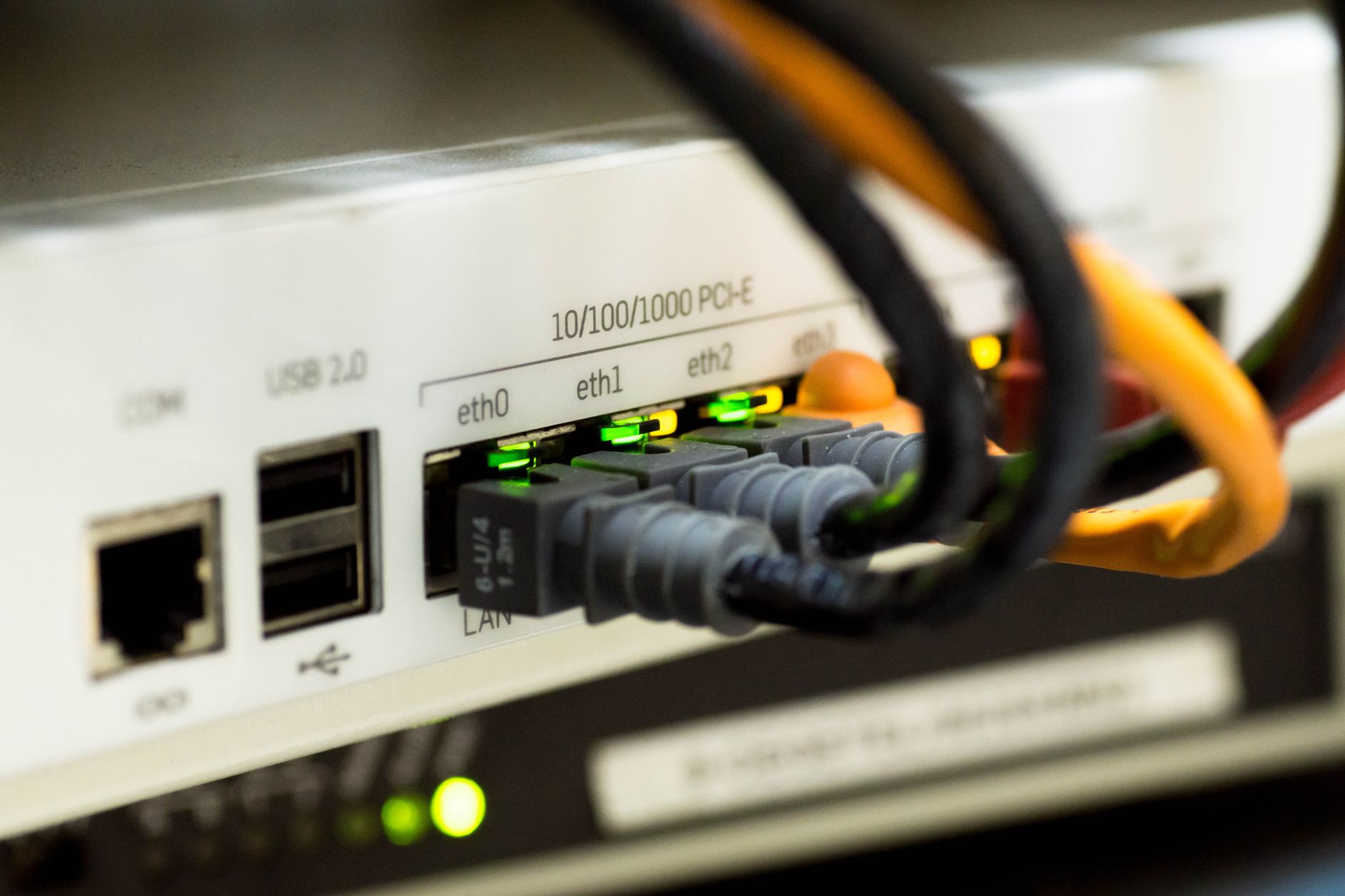
BT includes a feature called Smart Setup designed to help new devices join the network via an onboarding portal. However, this feature is known to cause intermittent connectivity bugs on smart home hardware, consoles, and streaming sticks by repeatedly triggering captive portal redirects.
- Log into the Hub Manager at
192.168.1.254using the admin password printed on the hub pull-out card. - Navigate to Smart Setup.
- Toggle the setting to Off and click Save.
- Under Wireless settings, ensure the Smart Scan feature is enabled, which allows the hub to automatically shift channels if local radio congestion spikes.
Step 5: Run a Quiet Line Test on Your Landline
For standard fibre-to-the-cabinet (VDSL) connections, electrical noise or water ingress on the copper pair causes the hub to drop synchronization under load. You can test your line acoustics without specialized equipment using standard landline diagnostic protocols:
- Plug an ordinary corded telephone directly into the master socket.
- Dial 17070 and select option 2 (Quiet Line Test).
- Listen carefully through the earpiece. The line should be completely silent. Any audible crackling, popping, humming, or static indicates physical cable degradation that requires an engineer.
If you discover noise on the line, report an audio fault via official BT broadband help tools, which prompts Openreach to repair the copper path without lengthy broadband-specific troubleshooting delays.
Step 6: Factory Reset the Hub
Corrupted configuration caches or partial firmware upgrades can cause lingering connection instability. Performing a hard factory reset restores the hub firmware to clean default parameters:
- Keep the hub powered on.
- Locate the recessed Reset pinhole on the rear panel.
- Insert an unfolded paperclip and press the internal switch down firmly for 15 to 20 seconds until the hub light blinks green.
- Release the pinhole and allow 5 to 10 minutes for the hub to reboot, re-download network credentials, and establish a solid blue light.
Handy tools on AliExpress
If you frequently manage home network cabling or need to extend wireless coverage across dead spots, these affordable network accessories can streamline diagnosis and expand reach.
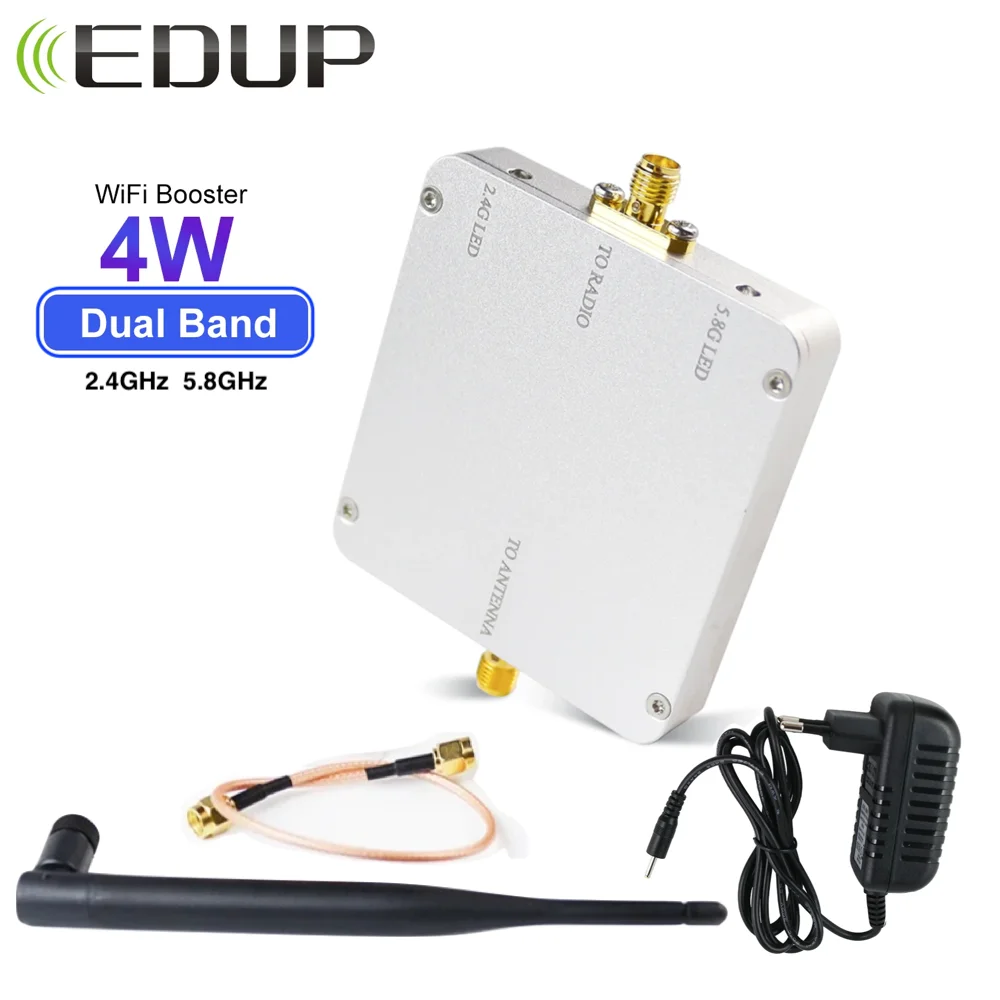
EDUP AB015 4W WiFi Signal Booster 5.8GHz2.4GHz WiFi Repeater Wireless Router WiFi Signal B
$73.31 $152.73 on AliExpress
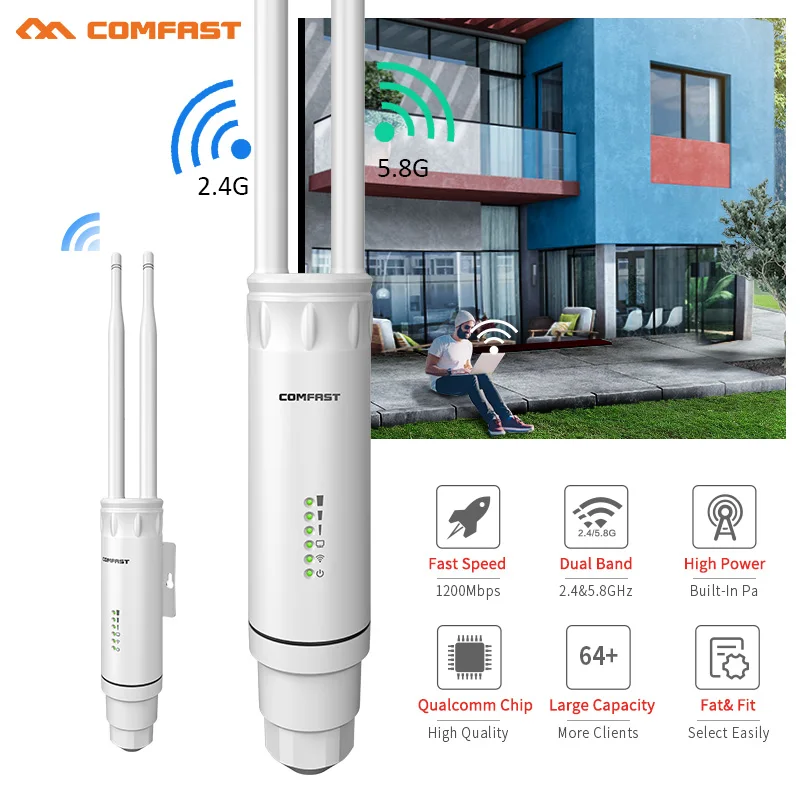
COMFAST AC1200/AC1300 Outdoor AP Router 2.4G/5G Dual Dand Long Range signal Extender Ampli
$42.58 $86.90 on AliExpress
Common Mistakes to Avoid
- Plugging into extension sockets: Never run your primary broadband router from secondary telephone extensions; always utilize the primary Openreach master socket.
- Restarting the hub repeatedly in one day: Power cycling your hub ten times in a short window triggers Dynamic Line Management (DLM) at the exchange, which may throttle your sync speed or destabilize your profile to prevent errors.
- Stacking the hub on electronic equipment: Placing your router directly on top of set-top boxes, amplifiers, or power strips creates heat build-up and electromagnetic noise.
Frequently Asked Questions
Why does my BT Smart Hub drop connection at the same time every day?
Consistent daily drops are usually caused by REIN (Repetitive Electrical Impulse Noise) from high-draw domestic appliances (like streetlights, immersion heaters, or faulty power supplies) or automated exchange maintenance windows occurring overnight.
How do I know if my BT Smart Hub is faulty?
If the hub remains on a solid orange, purple, or flashing red light even when connected to the master test socket, or if it reboots spontaneously with all lights cutting out, the internal power supply or hardware board may be defective.
Does BT charge to replace a faulty Smart Hub?
If you are within your minimum contract period and troubleshooting confirms a hardware defect, BT will replace the Smart Hub free of charge. Out-of-contract customers may need to re-contract or pay a delivery/equipment fee.
Conclusion
Resolving an intermittent connection requires isolating whether your line is losing sync or if local wireless interference is breaking the handshake between your devices and the router. By checking the Hub Manager event logs, using the master test socket, disabling Smart Setup, and running a line test, you can pinpoint the breakdown quickly. If you want to explore more networking diagnostics and hardware fixes, check out our Why Is Your Electric Scooter Turning Off? Causes & Easy Fixes to keep your entire digital setup running reliably.