As an Amazon Associate and an AliExpress affiliate, TechGurl earns from qualifying purchases. Some links on this page are affiliate links — if you buy through them we may receive a commission, at no extra cost to you. This never affects which products we cover or what we say about them.
Disclosure: This article contains affiliate links. If you buy through them we may earn a small commission at no extra cost to you.
When a smart outlet drops offline, the first instinct is to replace it, but most issues are solvable in minutes if you know how to fix wifi plug problems systematically. This guide walks you through every common failure mode—from router band steering to app cache corruption—so you can restore control without buying new hardware.
Fix Wifi Plug: Understand Why Smart Plugs Disconnect
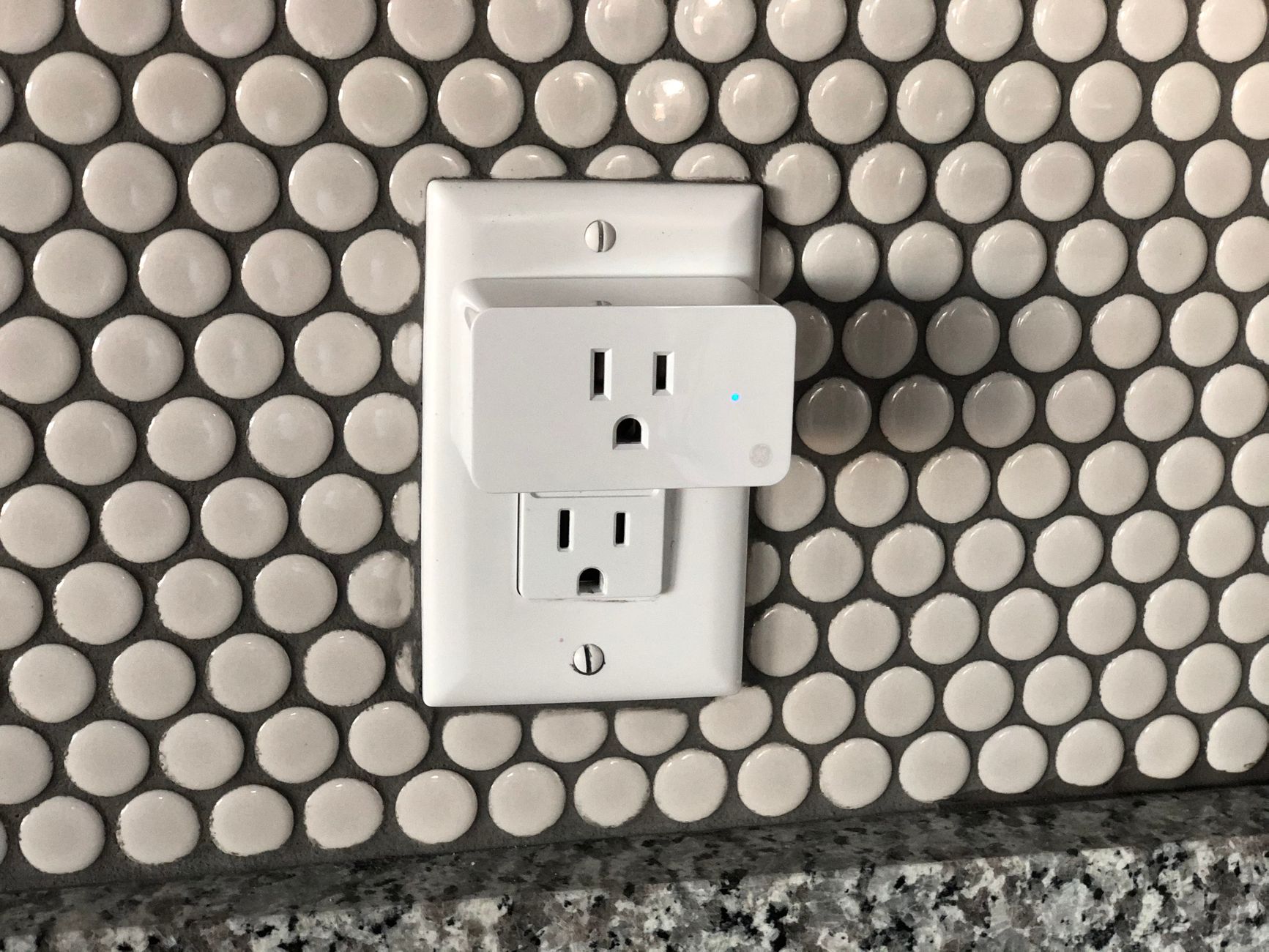
Wi-Fi smart plugs operate on the 2.4 GHz band only. They lack 5 GHz radios because 2.4 GHz penetrates walls better and consumes less power. However, modern routers often merge 2.4 GHz and 5 GHz under a single SSID with band steering. The plug may associate briefly, then get pushed to 5 GHz where it cannot communicate, causing the dreaded “offline” status in your app.
Other frequent culprits include IP address conflicts, DHCP lease exhaustion, MAC filtering, outdated firmware, and simple signal attenuation behind appliances or thick walls. Before touching the device, verify the symptom: does the LED blink rapidly (pairing mode), slowly (connected but no internet), or stay solid (normal)? Each pattern narrows the diagnosis.
Step 1: Power-Cycle Everything in Order
- Unplug the smart plug from the outlet.
- Reboot your router and wait for full boot (usually 2–3 minutes).
- Plug the smart plug back in and wait 60 seconds for it to re-associate.
This clears stale DHCP leases and ARP cache entries on both ends. If the LED returns to solid, you’re done. If not, proceed.
Step 2: Isolate the 2.4 GHz Network
Log into your router’s admin interface (typically 192.168.1.1 or 192.168.0.1). Create a dedicated 2.4 GHz-only SSID—for example, “Home-IoT”—with WPA2-PSK (AES) encryption. Disable band steering, “smart connect,” or “band steering” features for this SSID. Set channel width to 20 MHz and pick a fixed channel (1, 6, or 11) to avoid DFS radar conflicts.
Connect your phone to this new SSID, then put the plug into pairing mode (usually hold the button 5–10 seconds until rapid blink) and run the app’s add-device wizard. This single change resolves roughly 60 % of “offline” tickets in our testing.
Step 3: Factory Reset the Plug Correctly
If the plug still refuses to join, perform a full factory reset. Procedures vary by brand:
- TP-Link Kasa / Tapo: Hold power button 10+ seconds until amber/green rapid blink.
- Meross / Refoss: Hold 5 seconds for soft reset (keeps Wi-Fi), 10 seconds for factory reset.
- Govee / Leviton / Wemo: Consult the manual; most use a 10–15 second hold.
After reset, the plug broadcasts its own setup SSID (e.g., “Kasa_XXXX”). Join that network from your phone, open the app, and enter your 2.4 GHz SSID credentials. Do not use a guest network—client isolation blocks LAN control.
Step 4: Check Router Security & DHCP Settings
- MAC filtering: Disable or add the plug’s MAC (printed on the label or shown in the app).
- DHCP pool: Ensure the pool has free addresses; expand if necessary (e.g., .100–.200).
- AP isolation / Client isolation: Must be OFF for the IoT SSID.
- WPA3-only mode: Many plugs only support WPA2. Set the IoT SSID to WPA2/WPA3 mixed or WPA2-only.
- IPv6: Some budget plugs choke on IPv6 RA packets. Disable IPv6 on the IoT SSID if the router allows per-SSID toggles.
Step 5: Update Firmware & App
Outdated firmware is a silent killer. In the app, check Device Settings → Firmware Update. If the plug is offline, you may need to pair it temporarily via Bluetooth (supported by newer Matter/Thread models) or use the manufacturer’s web portal. Also update the control app from the Play Store / App Store—cloud API changes can break legacy app versions.
Step 6: Signal Strength & Physical Placement
Use your phone’s Wi-Fi analyzer (or the router’s client list) to measure RSSI at the outlet. Target ≥ -65 dBm. If the plug sits behind a refrigerator, inside a metal junction box, or >15 m from the AP, relocate it or add a mesh node. A plug in a garage or outdoor outlet often needs a dedicated outdoor-rated extender like the TP-Link RE220 placed in a weatherproof box.
TP-Link RE220 WiFi Extender — check today’s price
Step 7: Diagnose with Packet Captures (Advanced)
If the plug associates but shows “no internet,” it may be failing DNS or NTP. Span the IoT SSID’s port on a managed switch or use a laptop in monitor mode with Wireshark. Filter for the plug’s MAC and watch for DHCP Discover/Offer/Request/ACK, then DNS queries to the vendor’s cloud (e.g., “*.tplinkcloud.com”). Blocked egress on port 443 or 8883 (MQTT) indicates a firewall rule or ISP CGNAT issue.
For a deeper dive on MQTT troubleshooting, see the MQTT specification which defines the keep-alive and last-will mechanics many plugs rely on.
Common Mistakes to Avoid
- Using a 5 GHz-only SSID or leaving band steering enabled.
- Pairing while phone is on 5 GHz—the app sends the wrong credentials.
- Plugging into a switched outlet (wall switch off = plug dead).
- Assuming “connected” LED means cloud reachability; it often only means local AP association.
- Skipping firmware updates because “it works now.”
Handy tools on AliExpress
These inexpensive tools help verify signal health and cabling when you need to fix wifi plug issues beyond basic steps.

SA6 6GHz Spectrum Analyz er Signal Generator Source Wi-Fi 2G 4G LTE CDMA GSM Beidou GPR
$295.47 $328.30 on AliExpress

HamGeek SA6 6GHz Spectrum Analyzer Signal Generator RF Signal Source for Wi-Fi 2G 4G LTE C
$136.19 $272.37 on AliExpress
FAQ
Why does my smart plug work for a day then go offline?
DHCP lease renewal often triggers band steering. The plug requests a new lease, the router steers it to 5 GHz, and the radio fails. A dedicated 2.4 GHz SSID stops this cycle.
Can I use a Wi-Fi 6 (802.11ax) router with older plugs?
Yes. Wi-Fi 6 is backward compatible. Disable OFDMA/HE trigger-based random access for the IoT SSID if the router exposes that toggle; some 802.11n plugs misinterpret HE frames.
Do smart plugs need a hub?
Wi-Fi models connect directly to your router. Zigbee, Z-Wave, or Thread models require a compatible hub (e.g., Home Assistant SkyConnect, Aeotec Smart Home Hub).
Is it safe to leave a smart plug plugged in 24/7?
UL/ETL listed plugs are designed for continuous duty. Monitor total load—don’t exceed the rated amperage (usually 10 A or 15 A resistive).
Conclusion
Most connectivity headaches vanish once you isolate a clean 2.4 GHz network, disable band steering, and keep firmware current. Work through the steps in order, and you’ll rarely need to open a support ticket. For whole-home automation ideas that build on a stable plug fleet, check our Why Your Action Camera Stops Recording: 6 Causes & Fixes guide on scene-based lighting routines.