As an Amazon Associate and an AliExpress affiliate, TechGurl earns from qualifying purchases. Some links on this page are affiliate links — if you buy through them we may receive a commission, at no extra cost to you. This never affects which products we cover or what we say about them.
Disclosure: This article contains affiliate links. If you buy through them we may earn a small commission at no extra cost to you.
If you are searching for how to fix smart plug problems that keep knocking your lights, fans, or appliances offline, you are in the right place. This guide walks through every common failure mode — from Wi-Fi drops and app timeouts to dead relays and power-cycling quirks — with concrete, safe steps you can follow today.
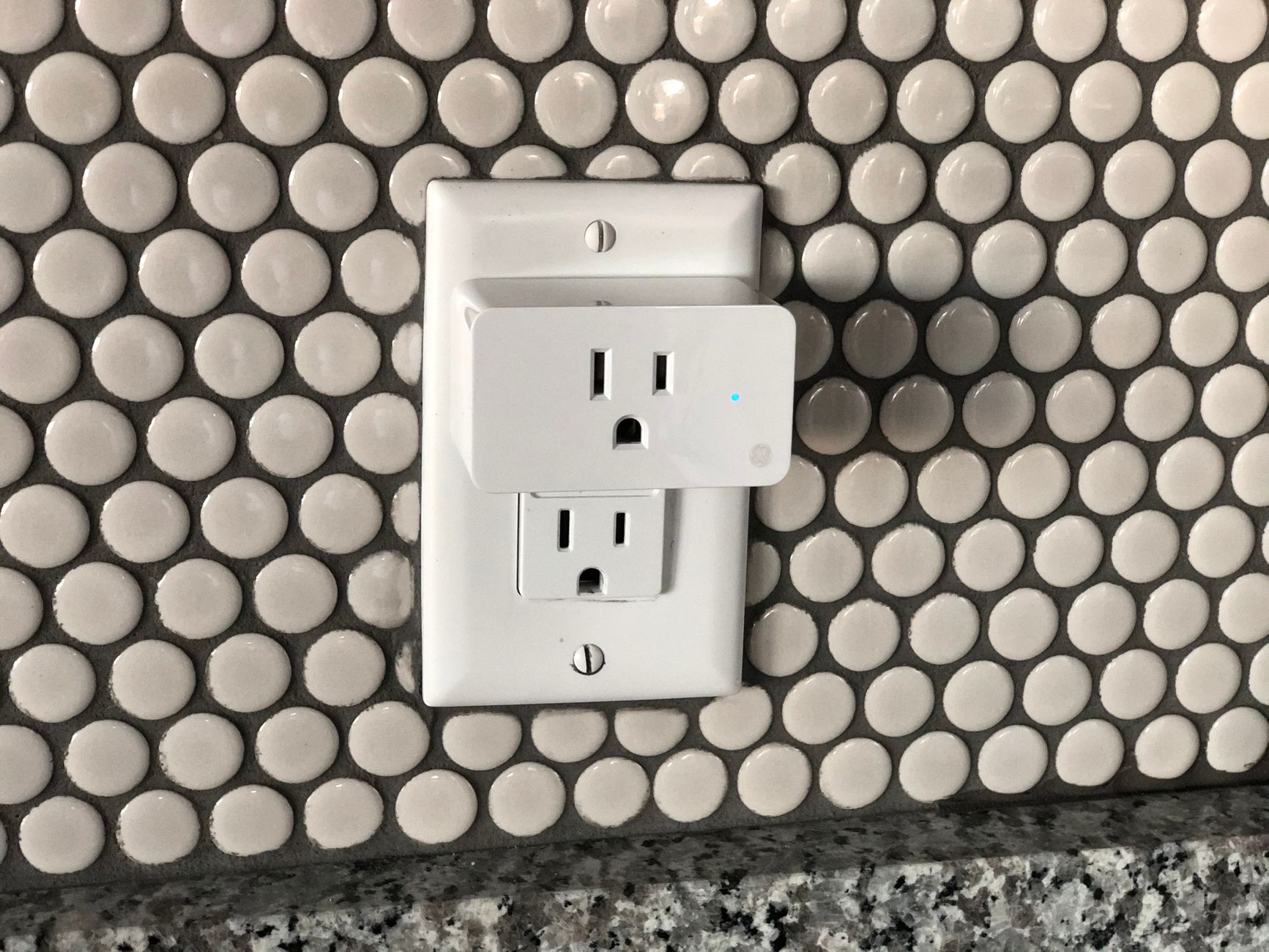
Quick Safety Check Before You Start
Smart plugs switch line-voltage current. Always unplug the unit from the wall before opening any casing or probing terminals. If you smell burning plastic, see scorch marks, or hear buzzing, stop — replace the unit instead of repairing it. A $15 replacement is cheaper than an electrical fire.
Step 1: Verify the Basics — Power, Outlet, and Load
- Test the outlet with a known-good lamp or phone charger. If the outlet is dead, check the breaker or GFCI reset button.
- Confirm the load rating. Most consumer smart plugs handle 10 A–15 A resistive (1200 W–1800 W at 120 V). Heaters, vacuums, or window AC units often exceed this and will trip the internal thermal cutoff.
- Inspect the plug prongs for corrosion or bent blades. Straighten gently with needle-nose pliers if needed.
Step 2: Power-Cycle the Smart Plug Correctly
A proper power-cycle clears stuck firmware states better than a quick unplug/replug:
- Unplug the smart plug from the wall.
- Wait 30 full seconds (capacitors need time to discharge).
- Plug it back in without any load attached.
- Wait for the status LED to settle into its normal pattern (usually slow blink = ready for pairing, solid = connected).
If the LED never lights, the internal power supply or relay driver may have failed — skip to Step 6.
Step 3: how to fix smart plug Wi-Fi Connectivity Issues
Wireless drops are the #1 cause of “unreachable” errors in Alexa, Google Home, or the vendor app.
3.1 Confirm 2.4 GHz Only
Virtually every smart plug on the market requires a 2.4 GHz SSID. If your router broadcasts a single combined SSID with band-steering, the plug may associate briefly then get pushed to 5 GHz and drop. Create a dedicated 2.4 GHz SSID (e.g., “Home-IoT”) and lock the plug to it.
3.2 Check Channel Width and Channel
- Set 2.4 GHz channel width to 20 MHz (not 40 MHz) for maximum range and compatibility.
- Pick channel 1, 6, or 11 manually; avoid “Auto” which can hop to a congested channel mid-day.
3.3 Disable Problematic Router Features
- AP Isolation / Client Isolation — blocks device-to-device traffic; the plug can talk to the cloud but not to local hubs.
- WPA3-only mode — many plugs only support WPA2-PSK (AES). Use WPA2/WPA3 mixed or WPA2-only.
- MAC filtering / Parental controls — ensure the plug’s MAC is whitelisted.
3.4 Signal Strength
Open the vendor app’s device info screen and note the RSSI. Aim for -65 dBm or better. If you see -80 dBm, move the plug closer to the router or add a mesh node. A quick test: temporarily plug the unit into an outlet in the same room as the router; if it stays online, the original location has a coverage problem.
Step 4: Factory Reset and Re-Pair
If the plug is online but unresponsive to commands, a clean re-pair often clears corrupt cloud tokens.
- Hold the physical button (usually 5–10 seconds) until the LED enters rapid-blink pairing mode.
- Delete the device from the vendor app and from any linked voice assistant.
- Re-add the device using the dedicated 2.4 GHz SSID from Step 3.
- Re-link to Alexa/Google/HomeKit only after the plug responds to on/off taps in the vendor app.
Step 5: Firmware Updates — Do Not Skip
Manufacturers push fixes for DHCP lease renewal bugs, TLS certificate expiration, and relay debounce logic. In the vendor app, check Device Settings → Firmware Update. Keep the plug powered and on Wi-Fi for the full 2–5 minute OTA process. Interrupting an OTA can brick the ESP-based MCU, requiring serial recovery.
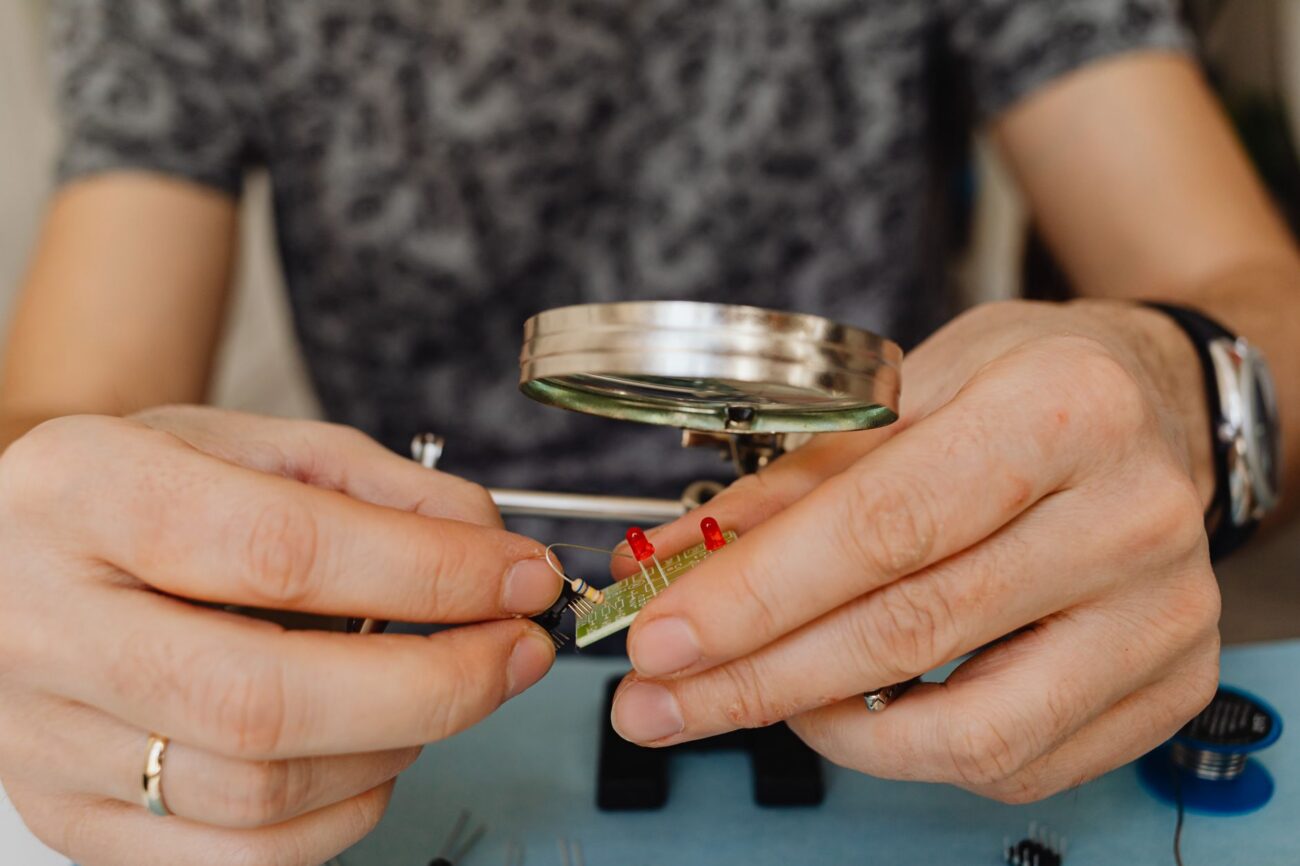
Step 6: Hardware-Level Diagnosis (Advanced)
If the LED never lights after Step 2, the issue is likely the internal 3.3 V buck converter, the relay, or the ESP8266/ESP32 module itself.
6.1 Tools You’ll Need
- A USB multimeter tester to confirm 5 V USB output from the onboard supply (many plugs expose a hidden USB port or test pads).
- A precision screwdriver set (typically Torx T6/T8 or tri-wing) to open the case without stripping screws.
- Multimeter with continuity beeper for relay coil and contact checks.
6.2 Common Failure Points
- Bulging/leaking electrolytic capacitor on the high-voltage side — replace with same µF, equal or higher voltage rating.
- Stuck relay contacts — tap gently; if they free, order a pin-compatible replacement (e.g., Songle SRD-05VDC-SL-C).
- ESP module not booting — measure 3.3 V at the module’s VCC pin; if missing, trace back to the LDO (often an AMS1117-3.3).
Warning: Mains-voltage traces sit millimeters from low-voltage logic. If you are not comfortable with creepage/clearance rules, recycle the plug and buy a new one.
Handy tools on AliExpress
These two tools cover 90 % of smart-plug teardowns and voltage checks without breaking the bank.

HoldPeak Engine Analyzer Tester HP-90K Auto Range Car Diagnostic Tool with Data Output by
$34.68 $43.21 on AliExpress

BSIDE Professional Digital Multimeter Smart 9999 EMF Multitester DC AC Voltage Capacitor O
$22.53 $25.23 on AliExpress
Common Mistakes to Avoid
- Using a 5 GHz-only SSID — the plug will never connect.
- Plugging a 1500 W space heater into a 10 A-rated plug — thermal cutoff will cycle endlessly.
- Holding the reset button while plugging into the wall — some models enter a bootloader mode that looks like a brick.
- Skipping the 30-second discharge wait — residual charge keeps the MCU in a latch-up state.
- Forgetting to re-link voice assistants after a factory reset — routines stay broken until you do.
FAQ
Why does my smart plug work in the app but not with Alexa?
This is usually a cloud-to-cloud token mismatch. Unlink the skill in the Alexa app, re-discover devices, and ensure the vendor app shows “Online” before re-linking.
Can I flash Tasmota or ESPHome on my smart plug?
Many Tuya-based plugs (identified by the “Tuya-Convert” OTA method) support it, but newer models use encrypted firmware or locked bootloaders. Check the Blakadder template repository for your exact model before attempting.
My plug clicks but the outlet stays dead — what’s wrong?
The relay coil is energizing (the click) but the contacts are welded open or the PCB trace to the outlet is cracked. This is a hardware fault; see Step 6.
How do I know if my router’s band-steering is causing drops?
Rename the 2.4 GHz and 5 GHz SSIDs differently (e.g., “Home-2G” and “Home-5G”). Connect the plug to “Home-2G” only. If stability returns, band-steering was the culprit.
Conclusion
Most smart plug headaches boil down to three things: a 2.4 GHz Wi-Fi misconfiguration, an overloaded circuit, or a skipped firmware update. Walk through Steps 1–5 methodically and you’ll resolve 90 % of cases without opening the case. For the remaining hardware faults, a USB multimeter and precision drivers let you diagnose safely — but never hesitate to replace a unit that shows heat damage. How to Fix When a Smartwatch Won’t Charge: Complete Guide
Klein Tools MM400 Multimeter — check today’s price
iFixit Mako Driver Kit 64 Bit Set — check today’s price