As an Amazon Associate and an AliExpress affiliate, TechGurl earns from qualifying purchases. Some links on this page are affiliate links — if you buy through them we may receive a commission, at no extra cost to you. This never affects which products we cover or what we say about them.
Disclosure: This article contains affiliate links. If you buy through them we may earn a small commission at no extra cost to you.
Discovering that your smartwatch won’t charge just as you are getting ready for your morning workout or commute is an exercise in pure frustration. Whether your display stays completely blank, flickers intermittently, or disconnects whenever you nudge the cable, charging failures are among the most frequent issues wearable owners encounter. The good news is that hardware failure is rarely the primary culprit; in most instances, dirt, software lockups, or drained safety circuits are behind the failure.
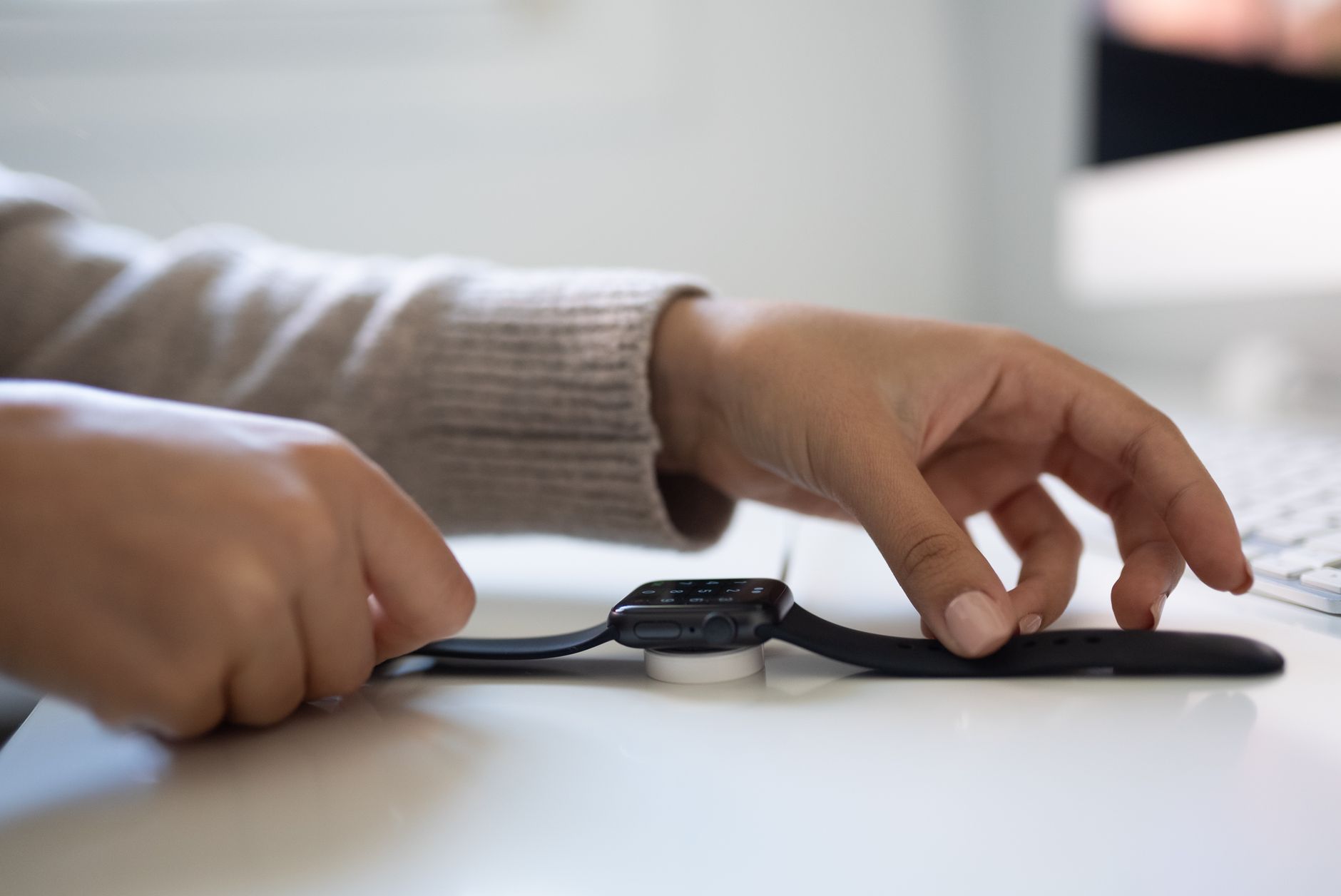
Why Your Smartwatch Won’t Charge: Common Causes
Modern smartwatches rely on one of two primary charging systems: proprietary physical pin contacts (pogo pins) or inductive wireless charging pads. Both systems are compact and exposed to constant environmental stress, making them vulnerable to minor disruptions that break the electrical connection. Understanding why your smartwatch won’t charge requires pinpointing where the power transfer breaks down between the wall outlet and the internal battery controller.
- Surface contamination: Sweat, skin oils, sunscreen, and lint accumulate on the back of the case, insulating gold pogo pins or interfering with inductive coils.
- Deep battery discharge: When lithium-ion cells sit at zero percent for days or weeks, internal protection chips put the battery into a protective sleep state that blocks standard fast-charging current.
- Insufficient supply current: Low-power USB ports on computer monitors, passive hubs, or worn wall bricks may fail to deliver the steady 5V voltage required to initiate charging.
- Firmware lockups: A crashed operating system can prevent the device from rendering the charging animation or recognizing the charging state even while power is supplied.
- Cable fatigue: The thin copper wiring inside proprietary magnetic charging leads often frays near the strain reliefs after repeated bending.
Step 1: Thoroughly Clean the Charging Contacts
Because smartwatches sit directly against your skin during intense physical exercise, residue build-up is the number one reason a smartwatch won’t charge. Salt crystals from dried sweat create an invisible non-conductive barrier over the brass or gold-plated contact pads on devices like Garmin, Fitbit, and older Fossil models.
Disconnect your charging cable from all power sources before cleaning. Inspect the contact points on both the back of your watch and the charging dock using bright light. If you notice dullness, green corrosion, or brown grime, you need to clean them properly:
- Dip a firm-bristled cotton swab or an extra-soft toothbrush in 90% or higher isopropyl alcohol.
- Gently scrub the metallic pogo pins on the charger and the contact pads on the watch body using circular motions.
- If the pogo pins on the charger are spring-loaded, press each pin down repeatedly with a wooden toothpick to verify that the internal springs return to their full height without sticking.
- Allow the components to air dry completely for at least two minutes before reconnecting to power.
If your pins show severe oxidation or pitting, applying an electronic contact enhancer can restore conductivity and prevent future corrosion.
DeoxIT D100L Contact Cleaner — check today’s price
Step 2: Inspect and Swap Your Power Source
Never assume the wall outlet or USB port is working properly when troubleshooting. High-efficiency wearable chargers require clean, stable voltage to trigger their initial handshake. Many low-power laptop ports, keyboard passthroughs, and unpowered USB hubs throttle their power delivery to preserve system stability, which can drop output voltage below the smartwatch’s charging threshold.
To isolate the power supply:
- Unplug the charging cable from your computer or multi-port hub and connect it directly to a standard 5V/1A or 5V/2A UL-certified wall adapter plugged directly into a known working wall receptacle.
- Avoid using high-wattage proprietary fast chargers designed for laptops or high-end smartphones if your watch uses older analog charging protocols, as some basic charging pucks fail to negotiate power over USB Power Delivery (PD) controllers correctly.
- Try plugging another device, like your smartphone, into the same wall brick to verify that current flows reliably.
If you want to know with absolute certainty whether current is passing through your cable into the watch, an inline USB tester eliminates the guesswork instantly.
Klein Tools ET920 USB Digital Meter — check today’s price
Step 3: Align and Secure the Charging Cable
With wireless puck chargers (such as those used by Apple Watch and Samsung Galaxy Watch), magnetic alignment is critical. If the concave surface of the puck does not seat completely flush against the curved glass or ceramic back of the wearable, inductive power coupling drops off exponentially.
Thick protective bumper cases, aftermarket case covers, or rigid strap loops can physically lever the watch back away from the charging surface. Remove any protective shells or third-party bands that wrap around the back of the chassis. Place the watch on the charger and ensure the magnetic snap centers the puck firmly. If you use a vertical bedside stand, ensure gravity is not pulling the watch slightly off-axis.
Step 4: Force a Hard Restart While Docked
Occasionally, an unresponsive smartwatch is actually receiving power, but an operating system crash has frozen the screen driver or put the device into a black-screen boot loop. Performing a forced reboot while the device sits on the active charger forces the battery management chip and the primary processor to re-sync.
- Apple Watch: Press and hold both the Digital Crown and the side button simultaneously for at least 10 to 15 seconds until the Apple logo appears.
- Samsung Galaxy Watch: Press and hold both the Home (Power) and Back keys simultaneously until the display turns black and reads ‘Rebooting’.
- Garmin Watches: Hold the top-left Light/Power button down continuously for up to 30 seconds until the screen shuts off, wait 5 seconds, then tap it once to power it back up.
- Wear OS Devices: Hold down the primary power button or crown for 15 to 20 seconds to trigger a hard reset cycle.
Step 5: Revive a Deeply Discharged Battery
If your smartwatch has been sitting in a drawer unused for weeks or months, its lithium-ion cell has likely entered a deep-discharge state. As explained in Battery University’s guide on lithium-based battery degradation, internal battery management systems (BMS) automatically isolate cells once voltage drops below a safe baseline to prevent hazardous lithium plating.
When troubleshooting why a smartwatch won’t charge after prolonged storage, patience is vital. The charger will supply only a minuscule trickle charge—often fractions of a milliamp—until the cell recovers enough chemical potential to accept full charging current safely. During this recovery phase, the screen will remain pitch black and show no indicators of life.
Leave the watch connected to a verified wall charger for at least two full hours undisturbed. Do not repeatedly lift the watch off the dock to check progress, as every disconnect resets the low-current pre-charge safety cycle.
Handy tools on AliExpress
If you prefer having versatile diagnostic hardware on hand to test cables, monitor draw, or carefully maintain wearable electronics, these affordable toolkit additions are worth keeping in your tech drawer.
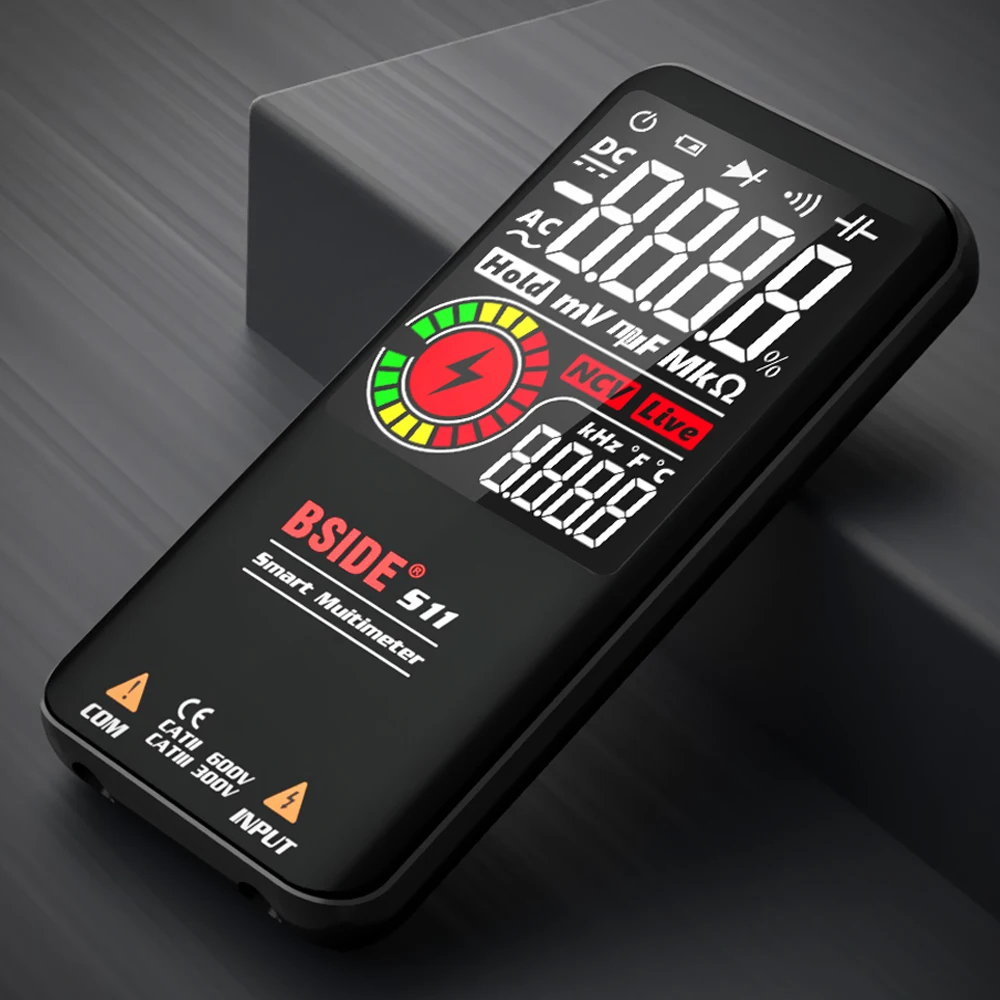
BSIDE Smart Digital Multimeter S10 S11 Profesional 9999 Multitester DC AC Volt Capacitor O
$17.38 $31.60 on AliExpress

MAXRIENY Smart Digital Multimeter USB Rechargeable True RMS EBTN DC AC Voltage Capacitance
$23.30 $47.56 on AliExpress
Tips to Protect Your Smartwatch Battery Health
To avoid recurring charging failures and ensure your wearable maintains all-day runtime, apply these preventative maintenance habits:
- Rinse after workouts: Always rinse off sweat and chlorinated pool water with fresh water, then dry the contacts with a microfiber cloth before docking.
- Avoid thermal extremes: Never leave your smartwatch charging on a sunny windowsill, vehicle dashboard, or hot surface. Thermal monitoring sensors will halt charging if internal temperatures exceed roughly 45°C (113°F).
- Store at 50% charge: If putting your smartwatch in storage for seasonal activities, charge it halfway and power it completely down rather than storing it empty.
- Protect the cable joints: Avoid wrapping charging leads tightly around power bricks; loose loops prevent internal copper strand breaks.
Frequently Asked Questions
What should I do if my smartwatch won’t charge after water exposure?
Even water-resistant smartwatches should never be placed on a charger while wet. Residual moisture in charging ports or between inductive surfaces can trigger short-circuit protection or accelerate galvanic corrosion. Wipe the watch thoroughly with a dry microfiber cloth and allow it to sit in a dry, ventilated area for at least two to four hours before attempting to recharge.
Why does my smartwatch get hot on the charger and stop charging?
Lithium-ion charging generates ambient heat, particularly on wireless inductive pucks. Smartwatch motherboards contain thermal throttling logic that stops charging if the battery exceeds safe temperature limits. If your watch feels noticeably hot, remove it from the charger, let it cool down at room temperature, and ensure you are not charging it in direct sunlight or under a pillow.
Can I use a high-wattage laptop charger on my smartwatch?
Yes, provided both the charger and cable adhere to modern USB Power Delivery standards. The smartwatch’s internal controller dictates how much power is pulled from the source (typically 2.5W to 5W), meaning a 65W brick will only supply what the watch requests. However, cheap off-brand high-wattage bricks with flawed PD negotiation logic may fail to handshake with low-draw wearables altogether.
Conclusion
Restoring a smartwatch that refuses to take a charge almost always comes down to isolating the simplest point of failure. By cleaning away skin oils and corrosion, verifying your wall adapter, checking magnetic alignment, and giving deep-discharged cells adequate time to revive, you can solve the vast majority of wearable charging headaches at home. If your device remains completely unresponsive after trying these diagnostic steps, consult our Why Is Your Electric Scooter Turning Off? Causes & Easy Fixes to weigh your repair options or decide if it is time to upgrade to a newer, more resilient model.