As an Amazon Associate and an AliExpress affiliate, TechGurl earns from qualifying purchases. Some links on this page are affiliate links — if you buy through them we may receive a commission, at no extra cost to you. This never affects which products we cover or what we say about them.
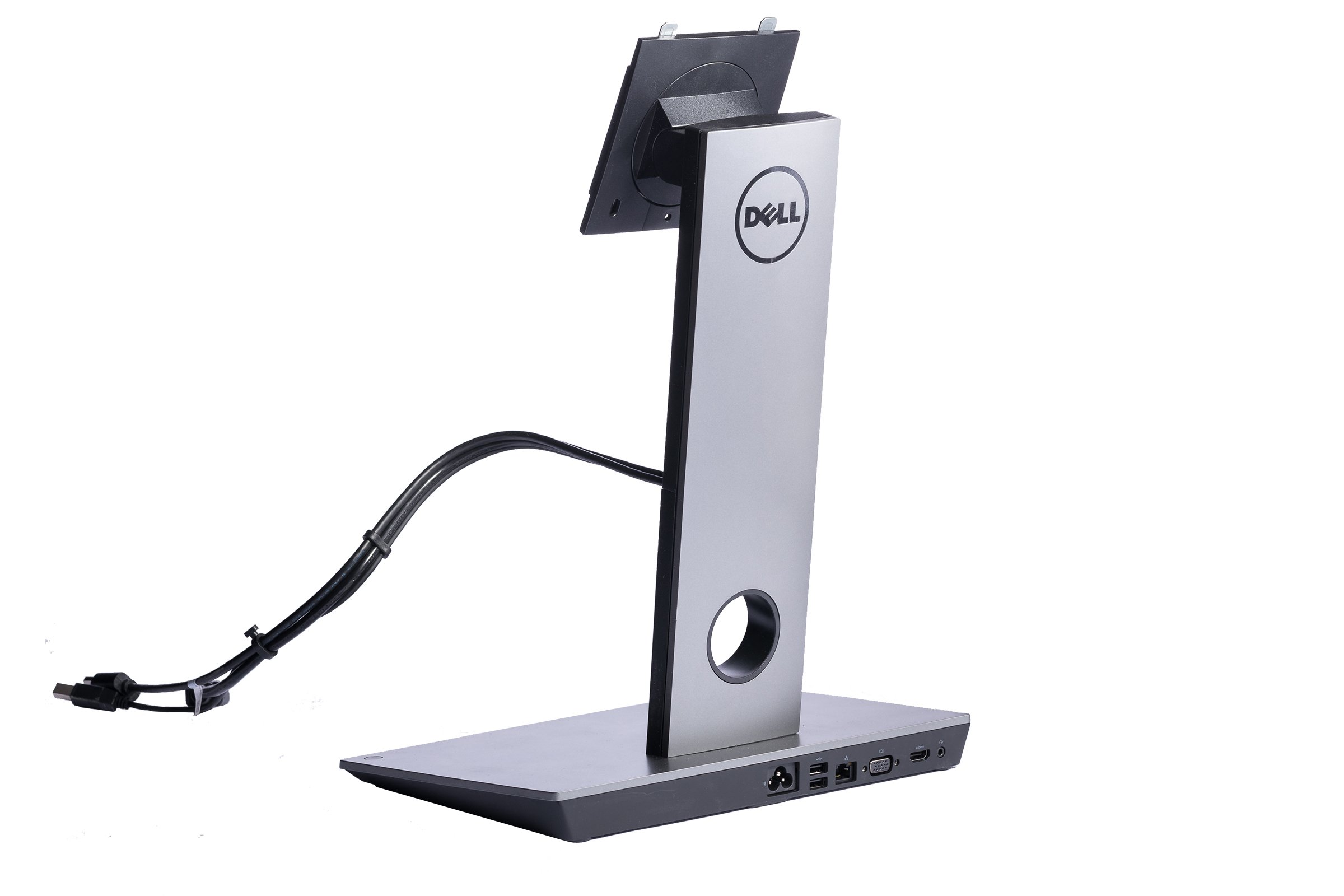
The Dell DS1000 dock with monitor stand tries to solve two problems with one product: a docking station and a monitor stand in a single compact unit. Here is the full breakdown after real desk use, including who it actually makes sense for.
- The Dell Dock with Monitor Stand is compact in size—just 12.4×7.7×16.7inches (315x195x426mm)—and has one single power cable that connects both your dock and display to the wall.
- Supports up to dual FHD displays, or single 4K UHD
- Single Cable Connectivity
- The Dell Dock with Monitor Stand supports VESA quick release on Dell E & P & Ultra Sharp series monitors from 19” to 27” (Dell VESA Adapter Plate included in the box for E-series monitor support).
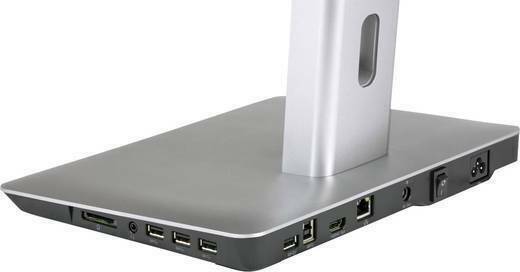
The Dell DS1000 puts your work front and center and will charge your laptop, but Alt-mode is fussy beyond one display and the ports can be difficult to reach.
FOR
- Charges over USB Type-C; 4K Output
AGAINST
- Ports are hard to reach; Alt-mode is finicky; Attached cables
Product Page
techgurl
Dell DS1000 Dock With Monitor Stand: Full Breakdown
The core idea behind the Dell DS1000 dock with monitor stand is single-cable simplicity: one cable runs from the dock to the wall, powering both the dock itself and whatever monitor sits on top of it. For a hybrid or hot-desking setup, that single-cable design is genuinely useful — you unplug one cable at the end of the day instead of five.
Compatibility and Port Layout
The dock supports VESA quick-release mounting on Dell’s E, P, and UltraSharp series monitors from 19″ to 27″ (a VESA adapter plate for E-series monitors ships in the box). It drives dual FHD displays or a single 4K UHD display, and charges a connected laptop over USB-C. The catch, as the hands-on above notes, is that Alt-mode display output gets fussy once you go beyond a single monitor, and several of the ports sit in a spot that’s genuinely hard to reach once the dock is set up on a desk.
Dell DS1000 vs. a Standalone Dock
If you don’t need the built-in monitor stand, a standalone USB-C docking station paired with any monitor arm will usually be cheaper and easier to access. If you’re already invested in Dell’s ecosystem, a Dell UltraSharp monitor is the natural pairing to get the full VESA quick-release benefit. Either way, keeping a spare USB-C to HDMI adapter in your bag is worth it for the days you’re away from the dock entirely.
Docking Stations, More Generally
For background on how docking stations work as a category, Wikipedia’s docking station overview is a useful, vendor-neutral reference point.
Frequently Asked Questions
Does the Dell DS1000 dock work with non-Dell monitors?
Yes, as long as the monitor supports standard VESA mounting, though the quick-release convenience is specifically tuned for Dell’s own E, P, and UltraSharp lines.
Can the Dell DS1000 dock power a laptop while docked?
Yes — laptop charging over USB-C is one of its core features, alongside display output, which is exactly what makes the single-cable setup possible in the first place.
Related: Best Portable Monitors for 2026
Setting Up the Dell DS1000 Dock With Monitor Stand, Step by Step
Unboxing this dock, the assembly is genuinely simple: the monitor stand column attaches to the dock base with four screws, the VESA plate mounts to the back of your monitor, and the monitor then clips onto the stand. Once assembled, exactly one power cable runs to the wall — everything else (laptop, monitor, peripherals) connects through the dock itself. Total setup time for a first-timer is realistically 15-20 minutes, most of it spent lining up the VESA screws correctly.
Daily Use: Where the Dell DS1000 Dock Shines and Where It Doesn’t
Day-to-day, the single-cable design lives up to its promise — arriving at the desk and connecting one USB-C cable to a laptop brings up the external display, charges the laptop, and connects any peripherals plugged into the dock’s rear ports. The rough edges show up in specific scenarios: switching between a docked laptop and a second device requires re-plugging that same single cable, and reaching the rear-facing ports for something like a USB flash drive means either memorizing their position or physically standing up to look.
Is the Dell DS1000 Dock With Monitor Stand Worth Buying?
For a genuinely single-monitor hybrid setup where desk space and cable count matter more than raw port accessibility, yes — this is a smart combined purchase. For a permanent multi-monitor desk setup, a standalone dock and separate monitor arms give you more flexibility and easier access to ports, even if it means one more cable to manage.
Long-Term Reliability of the Dell DS1000 Dock
Beyond the first few weeks, the most common long-term complaint with any docking station — including this one — is a display occasionally failing to wake up correctly after a laptop resumes from sleep. A quick unplug-and-replug of the single USB-C cable resolves it in the rare cases it happens, and it is far less frequent than with older, multi-cable dock designs. For a device that gets connected and disconnected daily, that level of reliability over months of use is a genuinely good sign.
Cable Management With the Dell DS1000 Dock
Because the monitor stand column doubles as the cable path, most of the cabling between the dock and the monitor stays completely hidden once assembled — a real advantage over a separate dock sitting loose on the desk with its own tangle of cables running to the monitor. The only visible cable in a finished setup is the single USB-C run to the laptop and the one power cable to the wall, which is genuinely a cleaner desk than most docking setups achieve.
Warranty and Support Considerations
Dell docking products typically carry a standard one-year limited warranty, and because the DS1000 is sold as an accessory rather than bundled hardware, it can usually be replaced independently of whatever laptop or desktop you are using it with — worth checking at purchase time if you plan to keep the dock longer than the laptop it started with.
Comparing the Dell DS1000 to Dell’s Other Dock Models
Dell sells several docking stations beyond the DS1000, including the WD19 series aimed at users who want a standalone dock without the built-in monitor stand, and higher-end models that add extra Thunderbolt ports for demanding multi-display setups. The DS1000’s specific niche is the combined dock-plus-stand form factor — if your priority is maximum port count and Thunderbolt speeds rather than desk-space efficiency, the WD19 line is worth comparing directly against it before deciding.
Final Recommendation
For a single external monitor, hybrid-work setup where minimizing cables and desk clutter matters, the Dell DS1000 dock with monitor stand earns a genuine recommendation. It is a niche product solving a specific problem well, rather than a universal docking solution — know which category you fall into before buying.
A Few Small Ergonomic Details
The stand column’s height is fixed rather than adjustable on this model, so it is worth measuring your desk and typical seated eye-line before buying if precise monitor height matters to your setup. Once positioned correctly for a standard desk and chair, most users find the fixed height comfortable without needing further adjustment day to day.
Overall, the Dell DS1000 dock with monitor stand is a niche but genuinely well-executed product for the specific problem it targets.
It rewards the specific person shopping for exactly this combination of features, rather than trying to be everything to everyone.
It is a smart, deliberate design.