As an Amazon Associate and an AliExpress affiliate, TechGurl earns from qualifying purchases. Some links on this page are affiliate links — if you buy through them we may receive a commission, at no extra cost to you. This never affects which products we cover or what we say about them.
Disclosure: This article contains affiliate links. If you buy through them we may earn a small commission at no extra cost to you.
Few technical frustrations sting quite like realizing you have a fitness tracker not tracking steps after completing a grueling five-mile run or an active eight-hour shift. Modern wearables rely on a delicate mix of hardware sensors, firmware algorithms, and continuous smartphone synchronization to calculate your daily movement. When one element in that chain breaks down, your step count grinds to a complete halt.
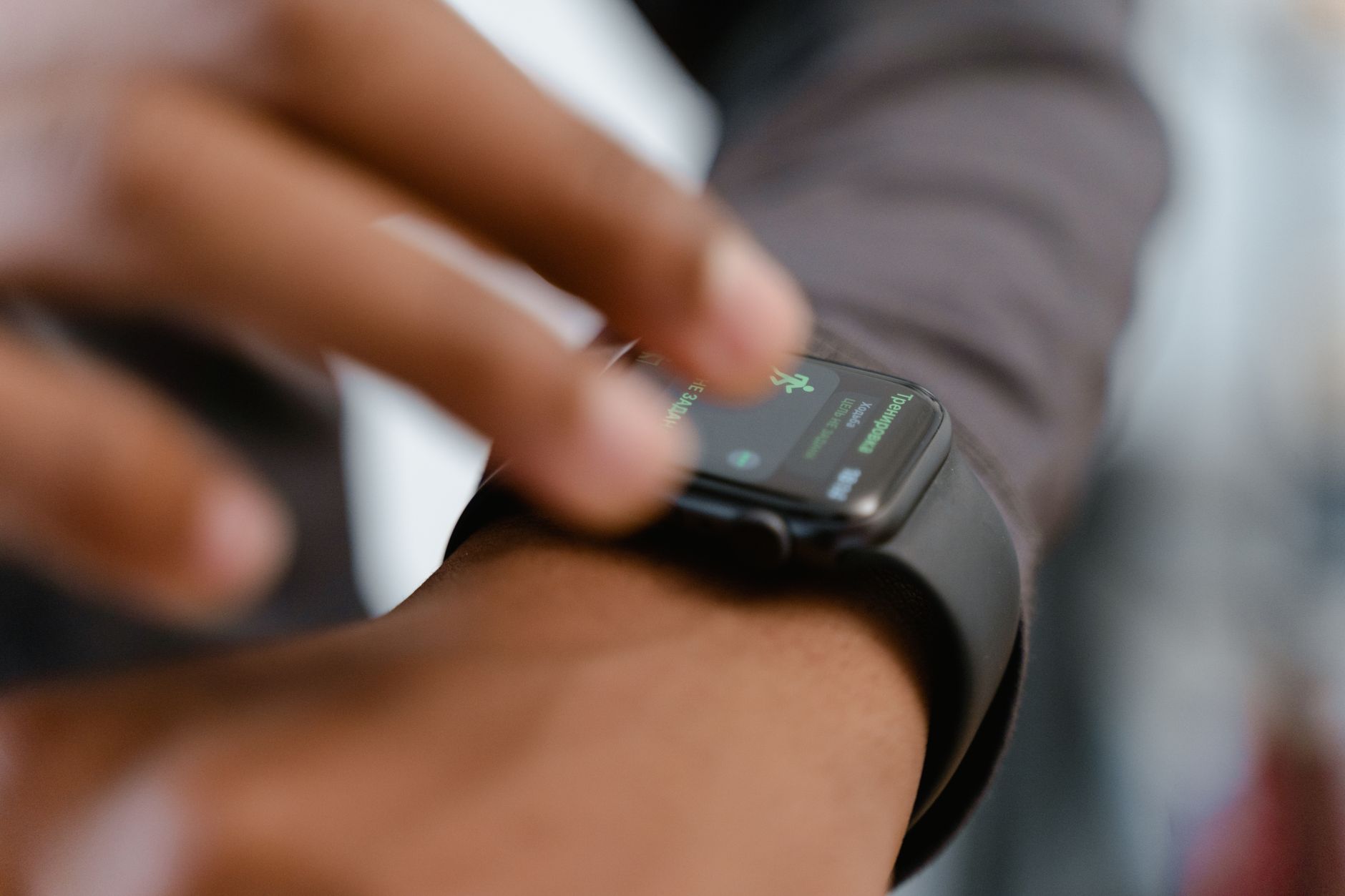
Whether you wear a dedicated fitness band or an advanced smartwatch, the underlying engineering behind step tracking is remarkably similar across brands. This guide walks you through the physical, software, and configuration bottlenecks that halt step counting and shows you exactly how to restore normal tracking.
Why Is Your Fitness Tracker Not Tracking Steps?
To fix a frozen pedometer, it helps to understand how modern wearables detect movement. Your device does not literally count feet hitting the pavement. Instead, it utilizes internal 3-axis accelerometers that measure inertia and gravitational forces across three dimensions. Proprietary onboard algorithms analyze those motion waveforms, filtering out ambient vibrations (such as typing or driving) and counting repetitive rhythmic arm swings as walking strides.
When a wearable stops registering footsteps, the underlying cause usually falls into one of four distinct categories:
- Physical sensor disruption: Mechanical shocks or sensor stalls preventing the accelerometer from reporting changes in velocity.
- Algorithmic thresholding: Many devices ignore movements until you complete at least 10 to 15 consecutive strides to prevent false positives from incidental arm motions.
- Sync and buffer stalls: Steps are counted locally in device memory but fail to push to your phone due to Bluetooth timeout issues or corrupt local databases.
- Configuration mismatches: The tracker is assigned to the wrong wrist in software, dampening signal detection.
Step 1: Check Wrist Placement and Algorithm Dead-Bands
Before diving into complex software reboots, verify that physical mechanics are not tricking your device. Modern trackers use conservative algorithms designed to filter out ghost steps while you brush your teeth or drive over bumpy roads.
First, examine which wrist your device is strapped to versus what your companion app expects. Wearables calculate motion differently depending on whether they sit on your dominant or non-dominant arm. A dominant wrist moves significantly more during non-walking tasks, prompting firmware to apply stricter filtering. Open your companion app (such as Garmin Connect, Fitbit/Google Pixel Watch, or Zepp Life), navigate to device settings, and ensure the Wrist Placement setting matches reality.
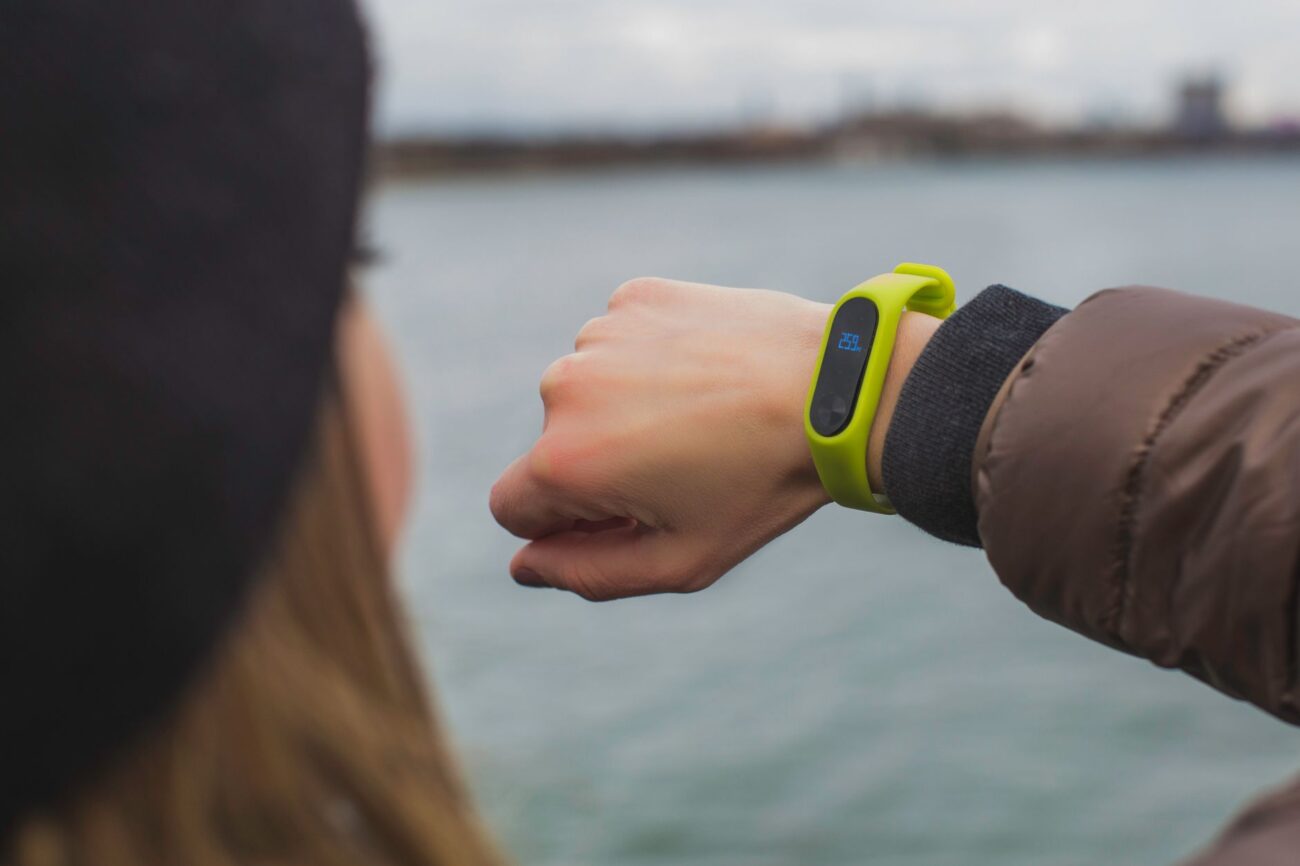
Second, test the dead-band threshold. Put the tracker on securely—snug against your skin, roughly one finger-width above your wrist bone. Walk continuously for 30 uninterrupted strides without looking down at your wrist or holding a smartphone in that hand. Once completed, stop and wait five seconds. If the tracker suddenly jumps up by 30 steps, your sensor is functioning normally; it simply withholds immediate real-time reporting until a continuous walking cadence is confirmed.
Step 2: Clean Contacts and Verify Power Delivery
Sensor microchips require stable internal voltage rail regulation to function accurately. Low battery states frequently trigger deep power-saving routines that disable non-essential sensor polling, including step detection.
Inspect the underside of your tracker. Sweat salts, lint, and body oils can cake over charging pins and environmental sensor arrays. Wipe the casing using a lint-free microfiber cloth slightly dampened with 70% isopropyl alcohol. Ensure the pogo pins or magnetic charging surfaces are spotless.
If your device has suffered erratic battery drains alongside step-tracking drops, check that your power brick is delivering clean direct current.
Klein Tools ET920 USB Digital Meter — check today’s price
Testing your charger with a dedicated USB power tester reveals whether an unstable charging brick is under-volting your tracker, which can cause internal power management ICs to brown out delicate sensor logic.
Step 3: Force Sync and Clear Bluetooth Cache
In many instances, your wristband is counting steps accurately, but the companion app on your phone fails to display them. This common sync disconnect creates the illusion that the wearable itself is dead.
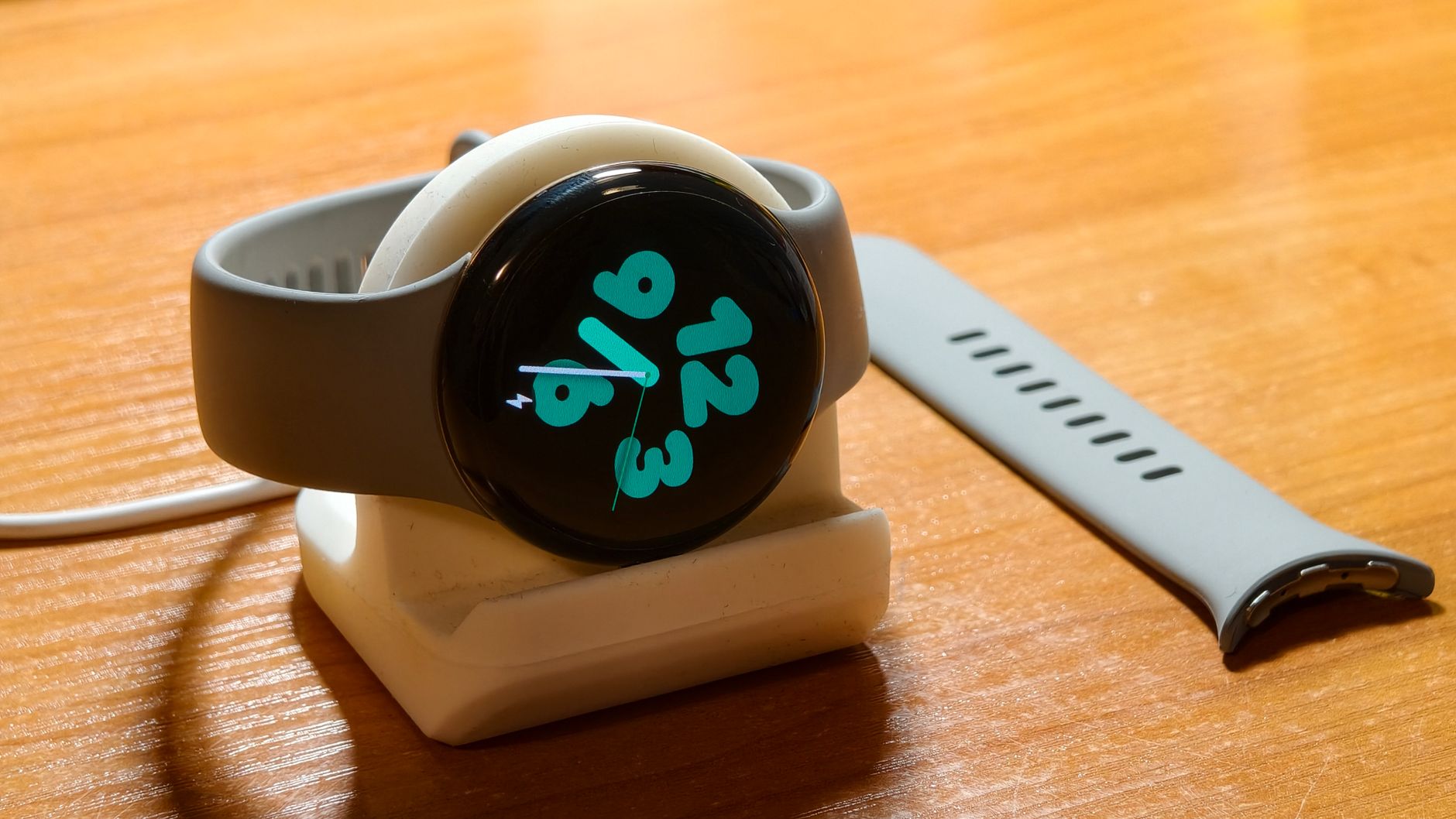
- Toggle Bluetooth: Turn off Bluetooth in your smartphone system settings, wait 15 seconds, and toggle it back on. Do not connect via the native OS Bluetooth menu; let the companion app manage the pairing handshake.
- Force-close the companion app: Swipe away the companion app from your recent apps carousel to clear volatile memory.
- Clear app cache (Android): Go to Settings > Apps > [Your Fitness App] > Storage and tap Clear Cache. Never tap ‘Clear Data’ unless you have backed up your profile to the cloud, as this logs you out.
- Manual sync trigger: Reopen the app, drag down on the primary dashboard screen, and observe the sync status ring. Wait until the sync confirmation appears before inspecting your step counts.
Step 4: Disable Aggressive OS Battery Optimization
Modern mobile operating systems ruthlessly kill background tasks to preserve phone battery life. If your phone kills the tracker background daemon, real-time step transfer stops entirely, leading users to believe the fitness tracker not tracking steps is broken.
On Android devices, navigate to Settings > Apps > [Your Fitness App] > Battery and switch the mode from ‘Optimized’ to ‘Unrestricted’. On Apple iOS, open Settings > [Your Fitness App] and confirm that Background App Refresh and Location Services (set to ‘Always’ or ‘While Using’) are enabled.
Step 5: Perform a Soft Restart and Factory Reset
If sensor telemetry remains completely flatlined despite continuous movement, the embedded controller may be experiencing an algorithmic lockup. A hardware restart forces the micro-controller unit (MCU) to reinitialize all peripheral I2C and SPI sensor buses.
- Soft reboot: Most fitness bands lack physical power buttons. To restart them, navigate to the on-device Settings > System > Restart menu. If the display is completely unresponsive, connect the device to its magnetic charging cable; many models reboot automatically when power is introduced or when holding down the primary capacitive button for 10-15 seconds while plugged in.
- Factory reset: If a restart yields no progress, execute a factory reset from the on-device system menu. This wipes corrupt onboard firmware registers and recalibrates the accelerometer baseline. Keep in mind you will need to re-pair the wearable with your phone afterward.
Handy tools on AliExpress
Diagnosing micro-electronics and maintaining clean charging interfaces is much easier with dedicated electronic diagnostic gear.

MAXRIENY Smart Digital Multimeter USB Rechargeable True RMS EBTN DC AC Voltage Capacitance
$23.34 $47.63 on AliExpress
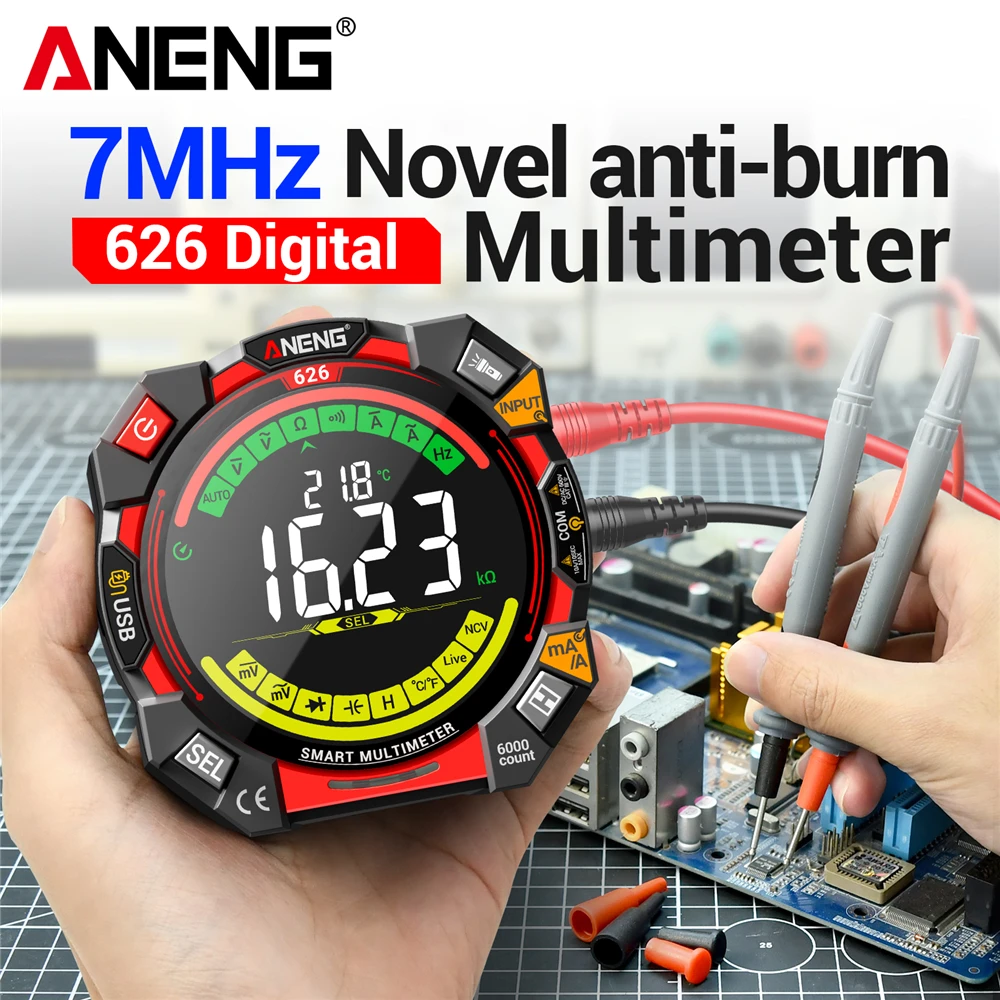
Multitester 6000 Counts 600V Voltage Tester ANENG 626 Multimetro Portable Current Ohmmer M
$26.27 $52.53 on AliExpress
Common Mistakes to Avoid
- Holding objects while walking: Pushing a stroller, carrying groceries, or holding a dog leash locks your wrist in place. Without rhythmic arm swing acceleration, the tracker will miss significant step volume.
- Tucking the band inside loose pockets: Placing a wrist-calibrated tracker into a loose pocket causes chaotic multidirectional inertia that step algorithms deliberately reject as noise.
- Skipping firmware updates: Manufacturers frequently deploy patch updates to fix pedometer sensitivity bugs and memory leaks. Always install pending wearable updates via the companion app.
Frequently Asked Questions
Why does my tracker record heart rate but zero steps?
Heart rate monitoring relies on an optical photoplethysmography (PPG) sensor using green LEDs, whereas step counting relies on a mechanical MEMS accelerometer. If the accelerometer hardware sustains damage from a drop or water ingress, heart rate logging continues normally while step counting drops to zero.
Can I track steps while pushing a lawnmower or stroller?
Because your hands remain stationary on the push bar, the accelerometer does not register natural arm oscillation. To capture these steps accurately, place the tracker in your pants pocket temporarily or log the activity manually as an outdoor walk with GPS enabled.
How do I know if my tracker accelerometer is physically broken?
If your device has been factory reset, charged fully, and fails to register any steps or screen wake gestures (raise-to-wake) across several hours of varied movement, the internal accelerometer microchip has likely suffered hardware failure and requires warranty replacement.
Conclusion
Reviving a stalled pedometer usually requires nothing more than clearing cached sync data, setting proper wrist orientation, or executing an MCU restart. If you have exhausted these diagnostic steps and your sensor remains unresponsive, consult our comprehensive How to Repair a Smartwatch Display or Screen: A Comprehensive Guide for recommendations on robust, repairable replacements designed for longevity.