As an Amazon Associate and an AliExpress affiliate, TechGurl earns from qualifying purchases. Some links on this page are affiliate links — if you buy through them we may receive a commission, at no extra cost to you. This never affects which products we cover or what we say about them.
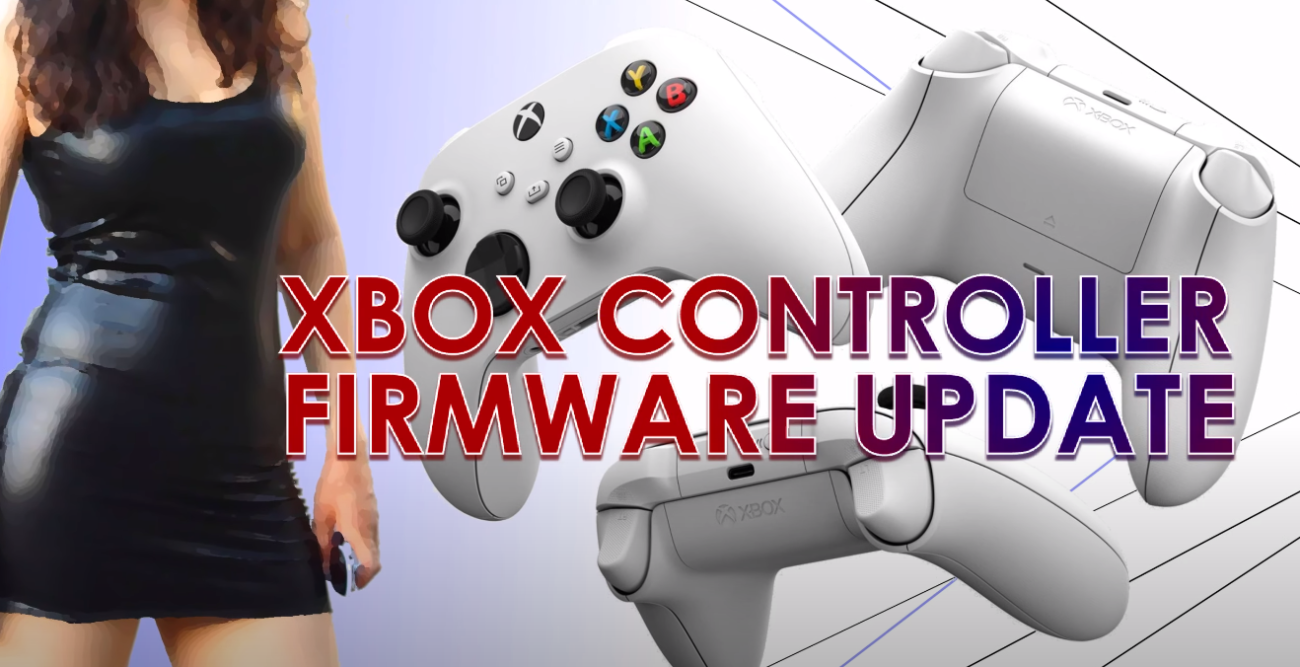
If your controller randomly disconnects mid-game, updating your Xbox Series X controller firmware is the first fix to try — and you don’t need an actual Xbox console to do it.
You can update your xbox controller firmware without an actual xbox.
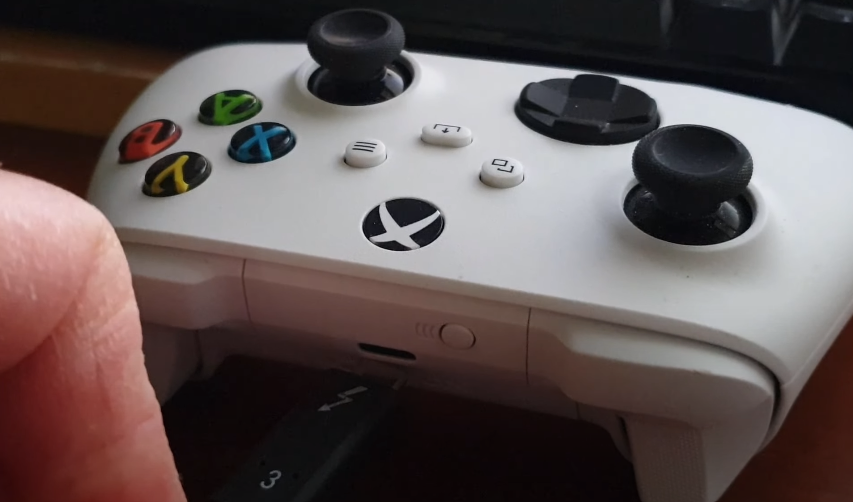
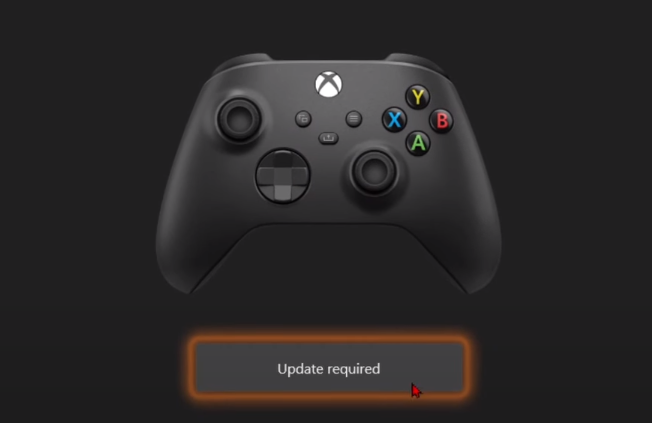
Recently Microsoft has released new update to address the controller disconnection bug. So its highly recommended for you to go ahead and see if your controller need an update as well!
In addition, the XBOX Accessories app also allows you to test all the buttons. This can be very handy if your controller acting weird.
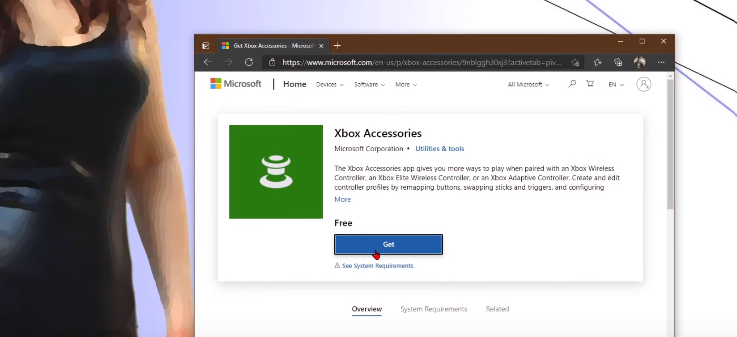
Download here: XBOX ACCESSORIES APP
WHERE TO BUY?
More premium XBOX accessories:techgurl
How to Update Xbox Series X Controller Firmware on PC
You can update Xbox Series X controller firmware entirely from a Windows PC:
- Connect the controller to your PC via USB cable or an Xbox Wireless Adapter.
- Download the Xbox Accessories app from the Microsoft Store.
- Open the app — it checks automatically and shows whether an update is available.
- If an update is offered, apply it; the process typically takes just a few minutes.
Why the Disconnection Bug Happens
Microsoft has released multiple Xbox Series X controller firmware updates specifically targeting random disconnection issues, as documented on Xbox Support’s controller update page. Outdated firmware, combined with Bluetooth interference or a weak battery, is the most common cause. If disconnections continue after updating, a rechargeable battery pack paired with a charging dock rules out battery-related drops entirely.
Testing Your Controller After the Update
The Xbox Accessories app doesn’t just install updates — it also lets you test every button and stick input directly, which is the fastest way to confirm a controller is fully fixed (or to diagnose a different, hardware-level problem) after a firmware update.
Frequently Asked Questions
Do I need an Xbox console to update Xbox Series X controller firmware?
No. The Xbox Accessories app runs on Windows 10 and 11 and can update the controller over a direct USB connection or the official Xbox Wireless Adapter.
Will updating the firmware erase my controller’s paired devices?
No, firmware updates don’t affect Bluetooth pairings or any saved settings on the controller.
Related: Mamba One V2 Wireless Gaming Controller Review
What the Xbox Accessories App Actually Checks
Beyond just applying an Xbox Series X controller firmware update, the Accessories app reads the controller’s current firmware version and compares it against Microsoft’s latest release before deciding whether an update is even needed — so running the app when everything’s already current simply confirms that, rather than forcing an unnecessary reinstall.
Troubleshooting a Failed Firmware Update
If an Xbox Series X controller firmware update fails partway through, don’t panic — disconnect and reconnect the controller, close and reopen the Accessories app, and try again. A wired USB connection is more reliable for firmware updates than Bluetooth, so if updates keep failing over Bluetooth, switching to a direct USB cable for the update process specifically usually resolves it.
Beyond Firmware: Other Common Xbox Series X Controller Issues
If a firmware update doesn’t resolve disconnection issues, the next things to check are the battery type (rechargeable battery packs can degrade over a couple of years and start causing intermittent power drops that look like disconnections) and physical Bluetooth interference from other 2.4GHz devices nearby, like Wi-Fi routers or other wireless peripherals sharing the same frequency band.
Keeping Xbox Series X Controller Firmware Updated Going Forward
Once you have applied the first update, it is worth opening the Xbox Accessories app every few months rather than waiting for another disconnection issue to prompt it. Microsoft ships Xbox Series X controller firmware updates a few times a year, and staying current avoids running into a fixed bug simply because the update was never installed.
Wired vs. Wireless: Which Connection to Use for Everyday Play
For actual gameplay, most players prefer the wireless connection once Xbox Series X controller firmware is up to date and the disconnection bug is resolved — wired is really just the recommended method for the update process itself, not a permanent downgrade. Once updated, going back to wireless play should feel exactly as responsive as it did before, just without the random drops.
What to Do If Problems Persist
If disconnections continue even after a firmware update, a fresh Bluetooth pairing (removing the controller from your PC’s Bluetooth devices list and re-pairing from scratch) resolves a surprising number of lingering issues that a firmware update alone does not touch, since it clears out any corrupted pairing data left over from before the update.
Does This Apply to Other Xbox Controllers Too?
The same Xbox Accessories app process for updating Xbox Series X controller firmware also works for the Xbox Elite Series 2 controller and standard Xbox One controllers, since Microsoft consolidated firmware management across its controller lineup into this single app rather than maintaining separate tools per model.
A Quick Recap
Connect via USB or the Wireless Adapter, open the Xbox Accessories app, apply any available Xbox Series X controller firmware update, and test every input afterward. It is a five-minute process that resolves the vast majority of random disconnection complaints without needing a warranty replacement or a new controller entirely.
One More Practical Tip
Keep the Xbox Accessories app installed even after your Xbox Series X controller firmware is fully up to date — it doubles as a quick diagnostic tool any time a new issue pops up, without needing to search for a different app first.
Closing Thoughts
An Xbox Series X controller firmware update is genuinely one of the easiest fixes in all of PC and console troubleshooting — five minutes, free, and it resolves the single most common controller complaint people run into.
One Final Thought
Controller issues that seem like a hardware failure are, more often than people expect, actually a simple firmware gap — before assuming the worst and buying a replacement controller, running through this update process costs nothing but a few minutes and rules out the most common cause first.
It is the kind of low-effort, high-success-rate fix that is always worth trying first, well before reaching for a warranty claim, a replacement purchase, or a frustrated post in an online forum asking why the controller keeps cutting out during matches.
Wrapping Up
Xbox controllers are reliable pieces of hardware overall, and firmware issues are the exception rather than the norm — but when they do show up, this fix is fast, free, and effective, which is about as good as troubleshooting outcomes get. Bookmark the Accessories app and keep it handy for the future.
Next time a controller acts up mid-match, this five-minute check is the very first thing to try, well before assuming the hardware itself is failing or reaching for a replacement.
Most controller complaints trace back to exactly this, more often than people assume going into it, which is precisely why this deserves to be the first troubleshooting step rather than the last resort after everything else has already failed.
Give it a real chance before writing off the hardware entirely as faulty or beyond repair, since the fix genuinely is this easy for most people who try it.
It resolves the issue for the overwhelming majority of people who take the five minutes to actually try it out.
Give it a genuine try.
nFinal word.
Give the fix a genuine, honest try before assuming anything else is wrong with the hardware itself.